
Introduction › Introduction › Introduction
Welcome to Edunav, a comprehensive digital platform designed to optimize educator efficiency in managing academic, administrative, professional development, and communication aspects in an integrated manner. This guide is designed to assist homeroom teachers, school administrators, students, and parents in operating the platform’s features, from classroom instructional management to precise student progress monitoring and evaluation.
Introduction › Introduction › Getting Started
Method 1: Login with Edunav Account (Web Apps)
- Open a browser application on your device such as Chrome, Safari, etc.
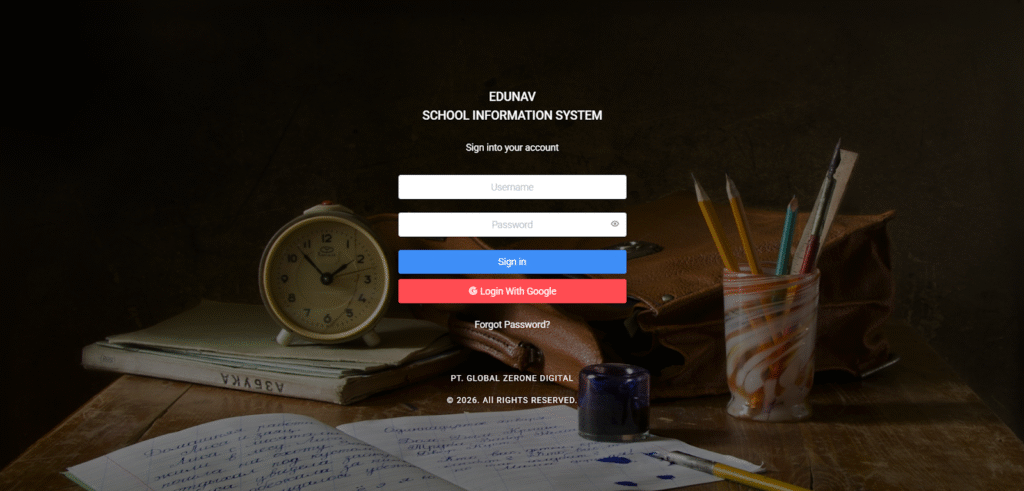
- Open the Edunav login page according to your school tenant:
- – sasbypi.sampoernaacademy.sch.id/login
- – samedancipto.sampoernaacademy.sch.id/login
- Enter the username and password sent by the school administrator or via email.
- After logging in:
- Click the Profile Icon to:
- – Update personal information (phone number, email, etc.)
- – Change your password
- – Change your theme
- Click the Profile Icon to:
Method 2: Login with Google SSO (Web Apps)
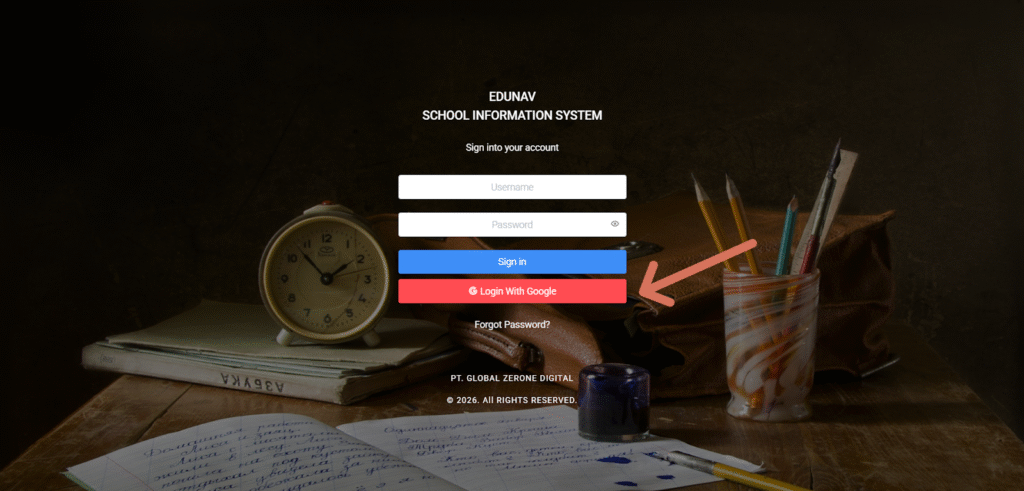
- Click “Login with Google” on the login screen.
- Enter/select your Google account (personal or school domain).
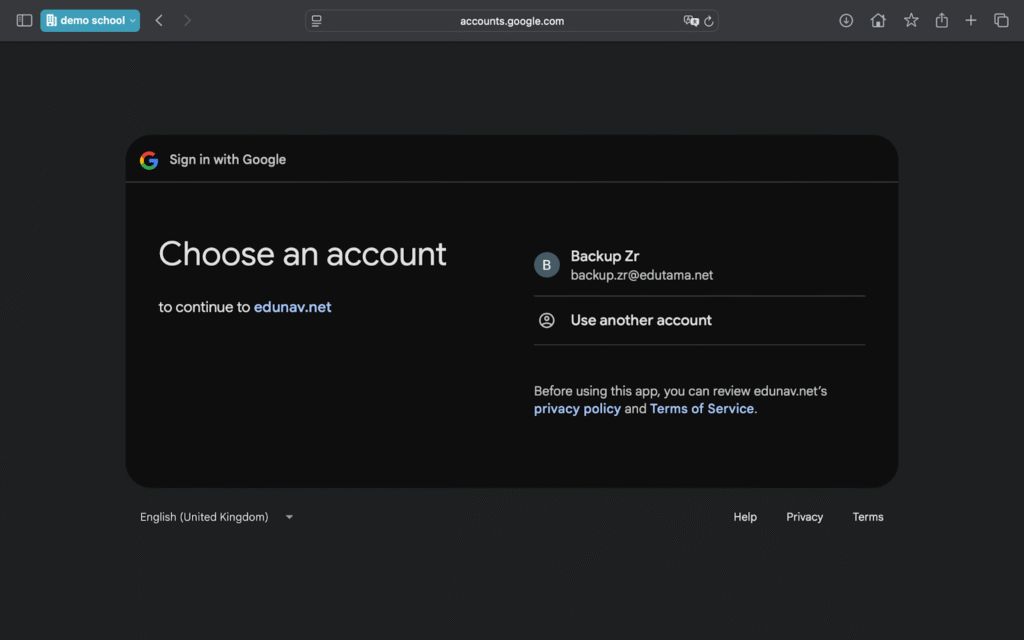
- The system will verify if the email is registered in Edunav.
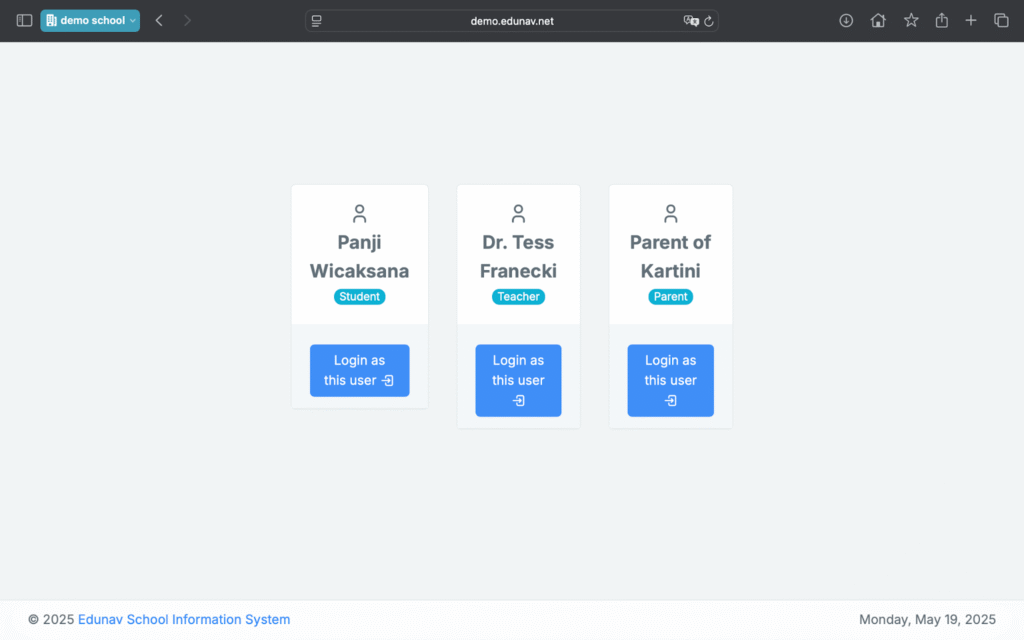
- If matched, proceed to the role selection (Parent, Teacher, etc. – if any of this roles attached to the same google email)
- Choose a teacher to access your dashboard.
Notes:
- Ensure your email is registered in Edunav System.
- One Google account can access multiple roles (Parent & Teacher).
- No need to remember a separate password.
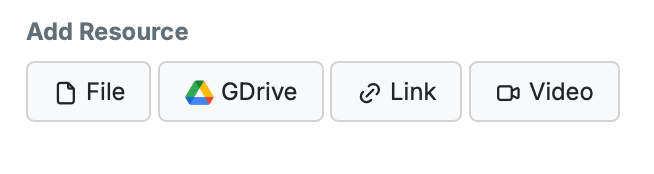
- By linking your google drive account. when you are going to share something in the Edunav system, like in LMS, you can attach files that are in your google drive account.
User Profile
- Go to Profile Icon > Setting:
- – Change your password
- – Switch your visual theme
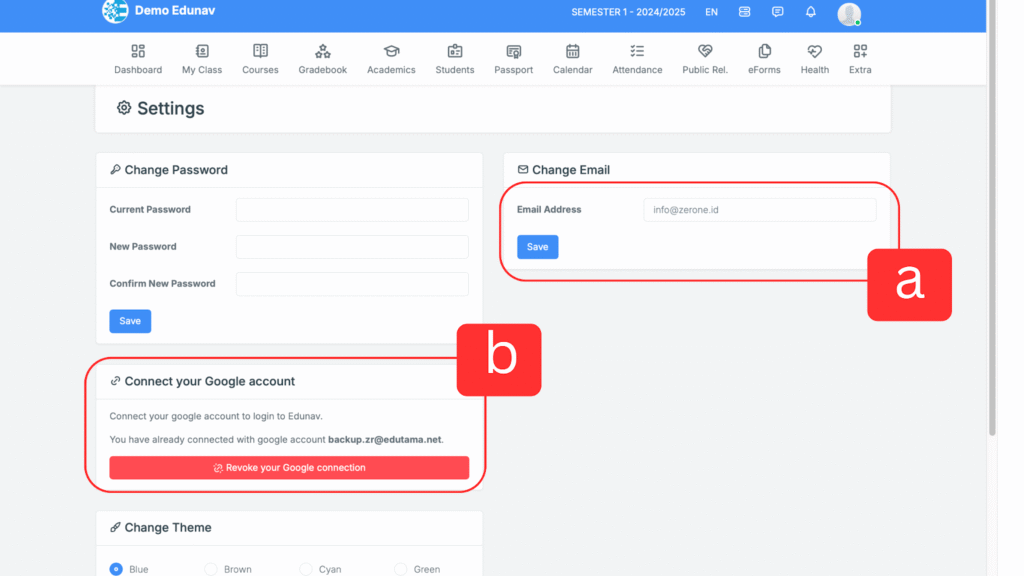
- Manage your email, You can differentiate between the email used for notifications and the email used for Google Authentication:
- A. Notification email and user data are used as the user’s profile.
- B. Google Authentication email is used for quick login and connecting to Google Drive.
Dashboard
Quick Action
Upon logging in, you will be directed to the teacher dashboard. The dashboard includes:
- Quick access to menus, recent announcements, calendar events, and tasks.
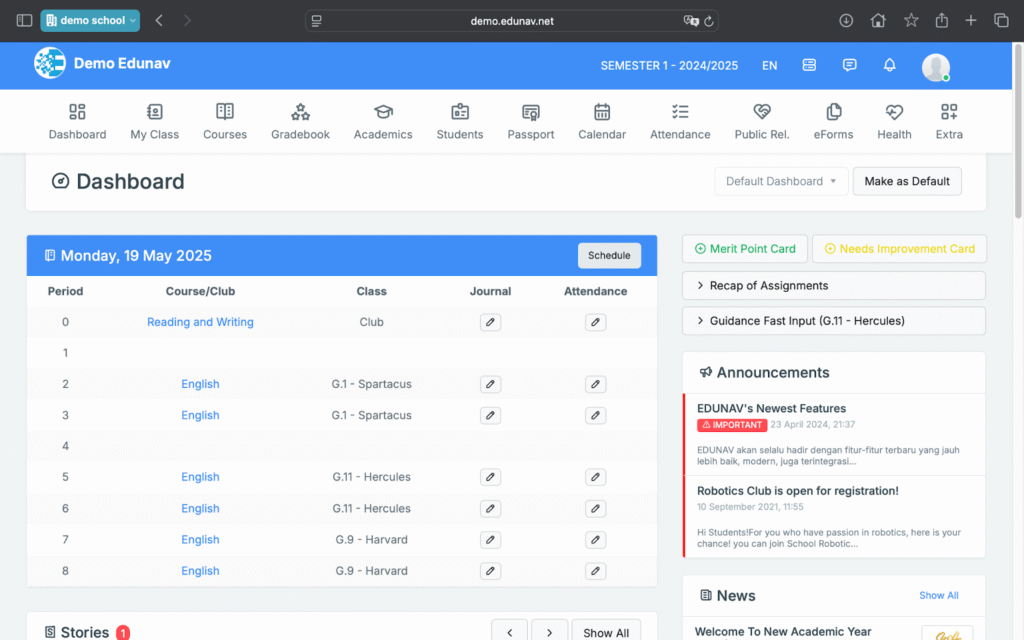
- in today’s lesson schedule section you can take quick action to :
- A. go to LMS by clicking on the course name
- B. create lesson journal
- C. take attendance
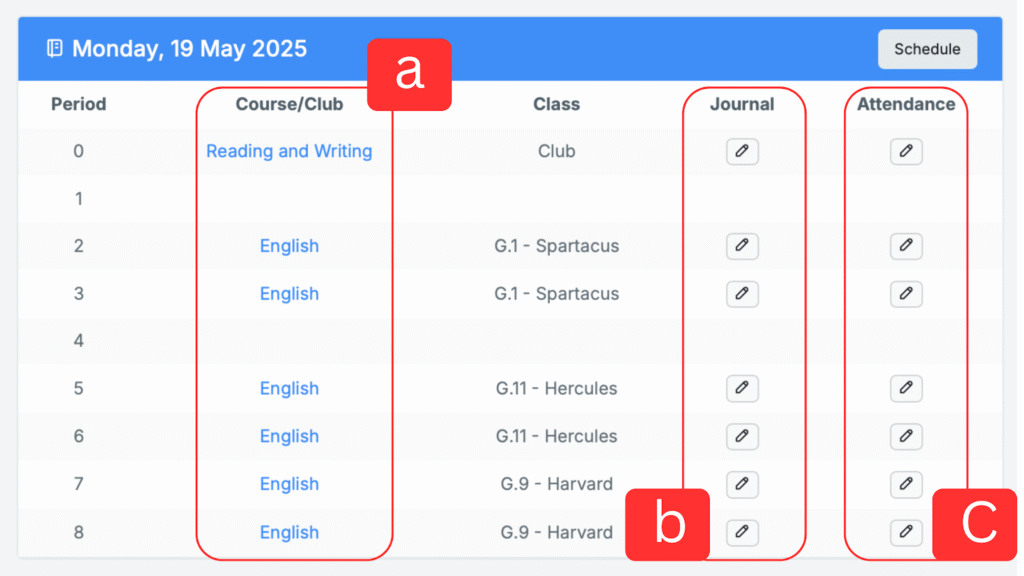
Take Attendance (Periodically)
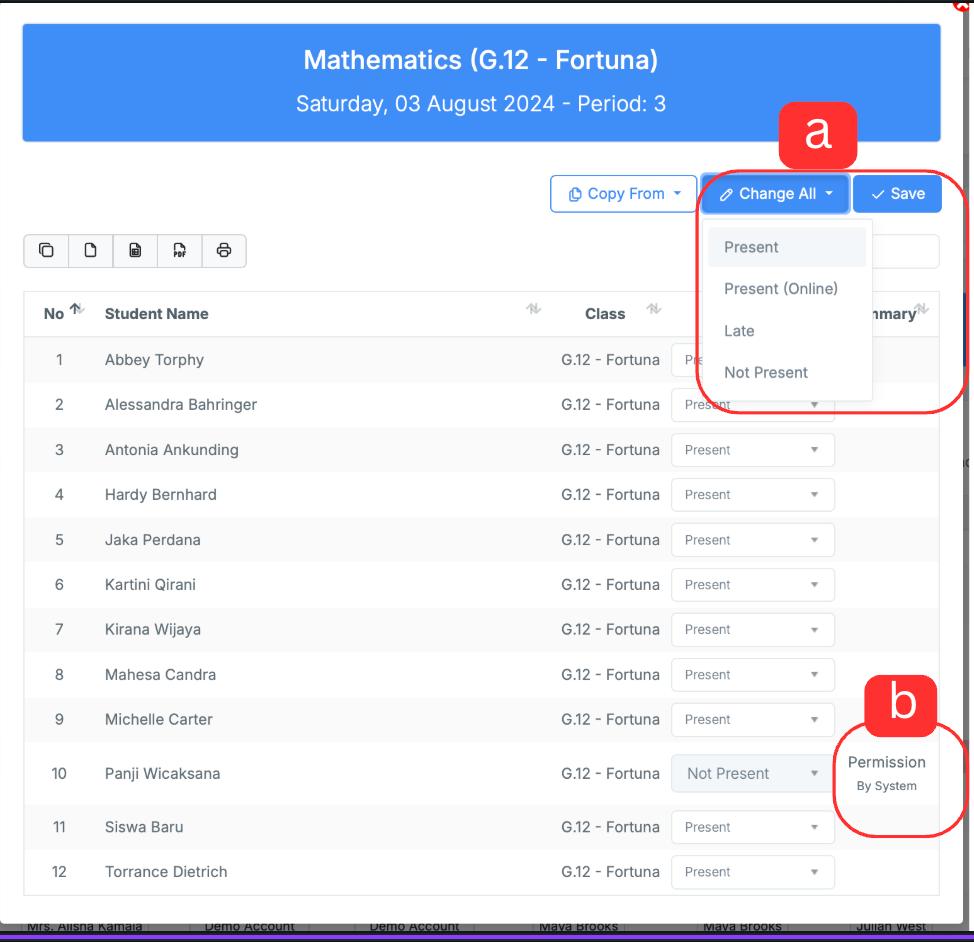
Teachers can see their Today’s schedule and can take students’ attendance periodically. They can mark students as Present, Not Present (if students do not attend the class when the teachers are teaching in class) or Tardy. If somehow Students are already being permitted by School or HRT, the subject teacher can see directly the fulfilled data for specific Student as Not Present but has Absence Summary (e.g. Sick, Permission, or School Duty). Teachers can copy Attendance conditions from the previous period or they can update using bulk action like make Present directly for all Students.
- a. Bulk quick action
- b. If a student has received permission, the subject teacher does not need to take attendance for that student.
Manajerial Features › Academic › Class
- Student List
- Homeroom Teacher
- Additional Teache
Manajerial Features › Academic › Custom Attendance
Custom Attendance
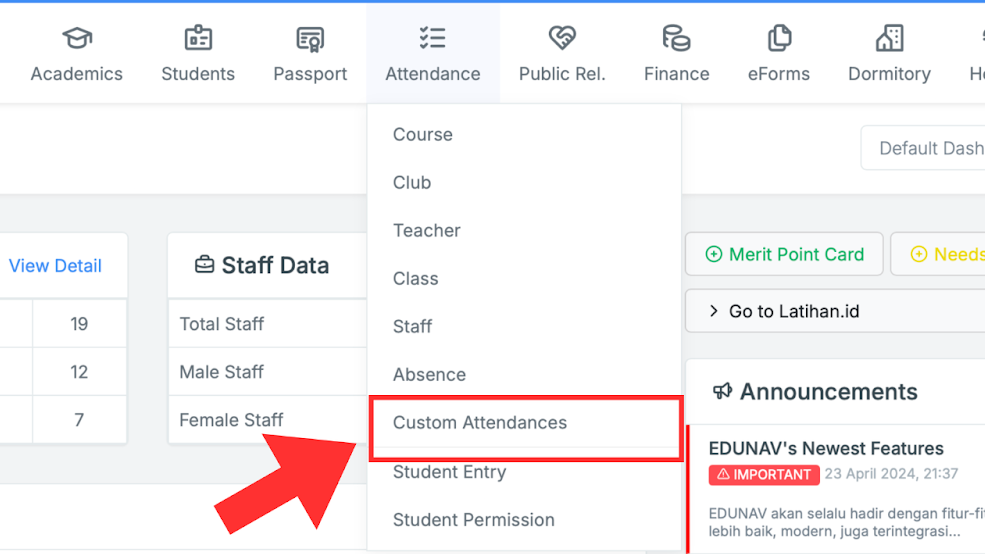
( Menu Attendance > Custom Attendances)
1. Introduction
Custom Attendance is a feature in Edunav designed to record attendance for school activities outside of regular academic attendance, such as Courses and Clubs. This feature supports attendance recording for school activities, routine events, and special activities that are not directly tied to the daily learning schedule.
Custom Attendance helps schools document student attendance in a structured manner, separate from academic attendance, while remaining integrated within the Edunav data ecosystem.
2. Purpose of Use
The Custom Attendance feature is used to:
- Record attendance for non-academic school activities.
- Document attendance at school events or routine activities.
- Provide attendance data that can be exported for reporting purposes.
- Support additional attendance data that can be entered into student report cards.
This feature provides flexibility for schools in managing various types of activities outside the classroom without disrupting the main attendance system.
3. Data Characteristics and Structure
Several important things to understand about Custom Attendance:
- Custom Attendance is stored in a separate module and is not directly connected to the Academic Attendance System.
- Each Custom Attendance is created with storage data available for one full semester. Attendance data is not created on a daily, weekly, or monthly basis.
- Once created, attendance data can be filled in flexibly throughout one semester, either daily, weekly, or according to activity requirements.
This structure ensures the consistency of activity attendance data throughout the semester.
4. Types of Activities Supported
Custom Attendance can be used to record attendance for various activities with customizable names, for example:
- Non-academic school activities
- Regular school events
- Coaching programs or special activities
- Periodic activities that are not included in Courses or Clubs
Schools can determine the types of activities that use Custom Attendance in accordance with internal policies.
5. User Access Rights and Roles
5.1 Access Menu
The Custom Attendance menu can be viewed by all school staff in the Edunav system.v.
5.2 Access Rights Settings
Although the menu can be viewed by all staff, only users with specific permissions can view and fill in attendance data. Staff who do not have access will receive a notification.
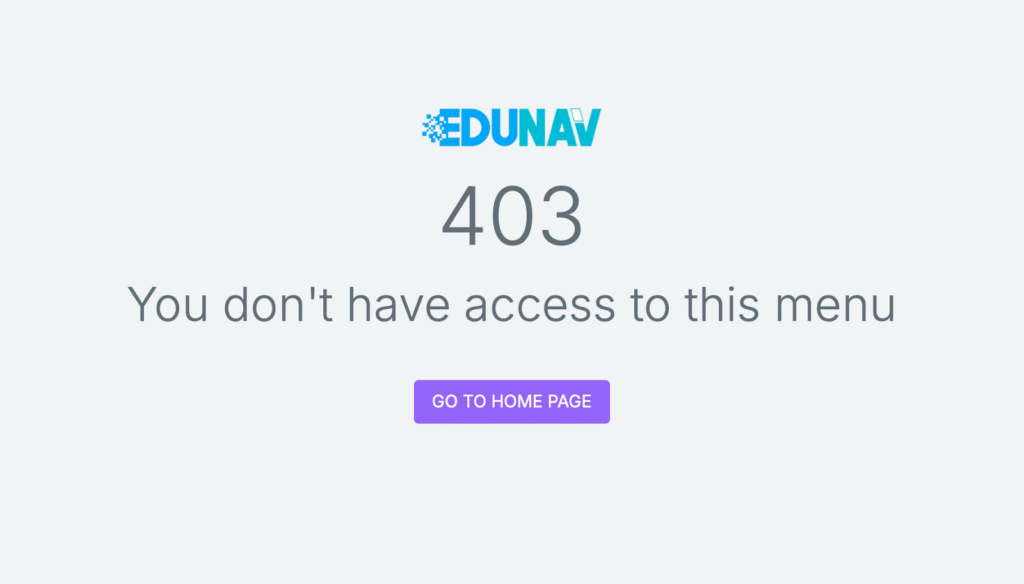
(Notification for staff who do not have access)
5.3 The Role of School Administrators
Users with the Admin role have the authority to::
- Determine events or activities that use Custom Attendance
- Set who can fill in attendance for each event
- Manage user access rights to Custom Attendance data
This setting ensures data security and prevents attendance from being filled in by unauthorized parties..
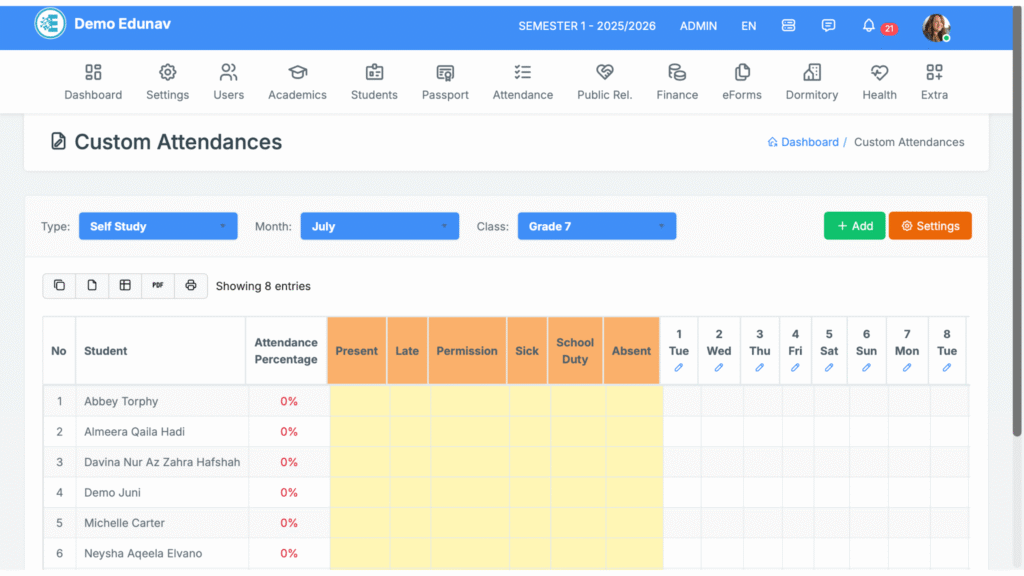
(View from the School Administrator)
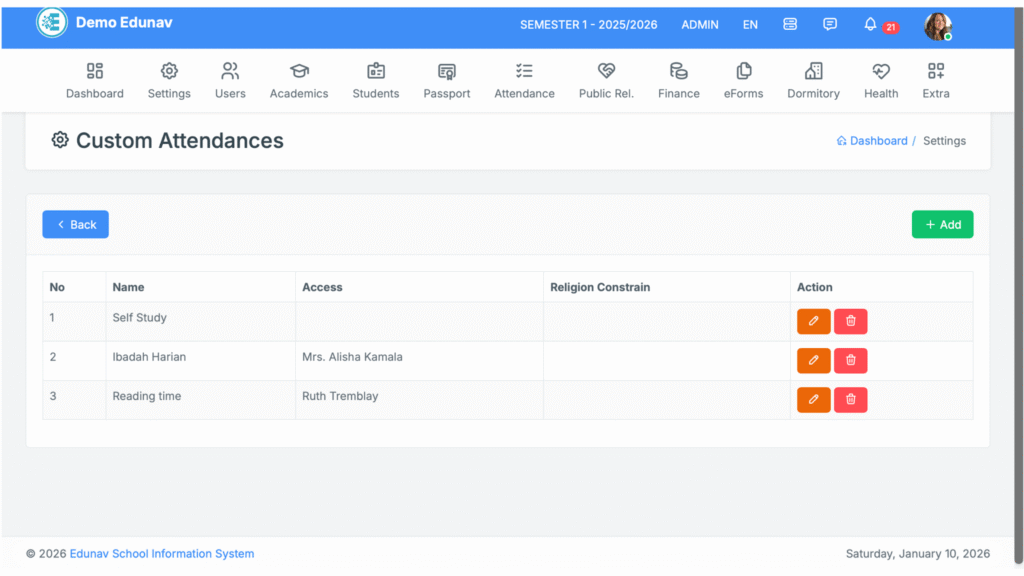
(Menu Settings by Admin)
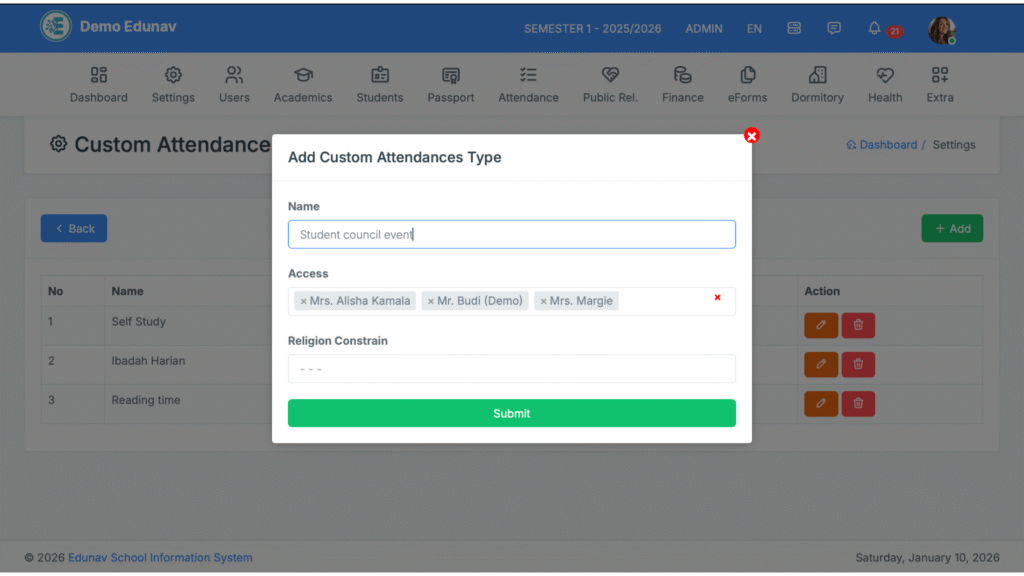
(Adding Custom Attendance Types)
6. Attendance Data Entry
Attendance data is filled in according to:
- Events set by the Admin
- Fill in during the active semester period
- The data entry section is provided for 1 semester and can be used for activity needs (daily, weekly, or other periodic activities)
All input data will be stored centrally and consistently in one module.
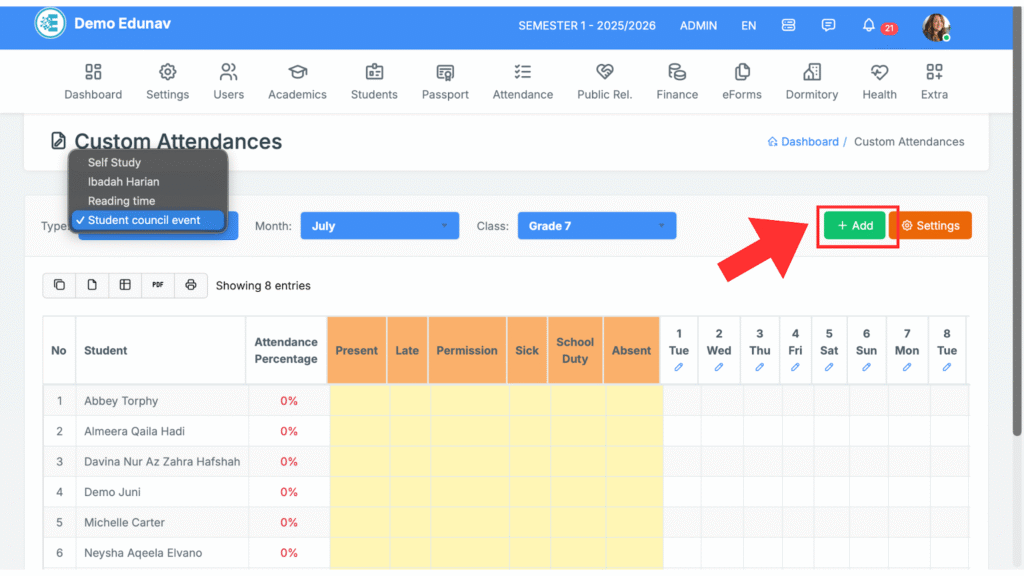
(Data entry by PIC)
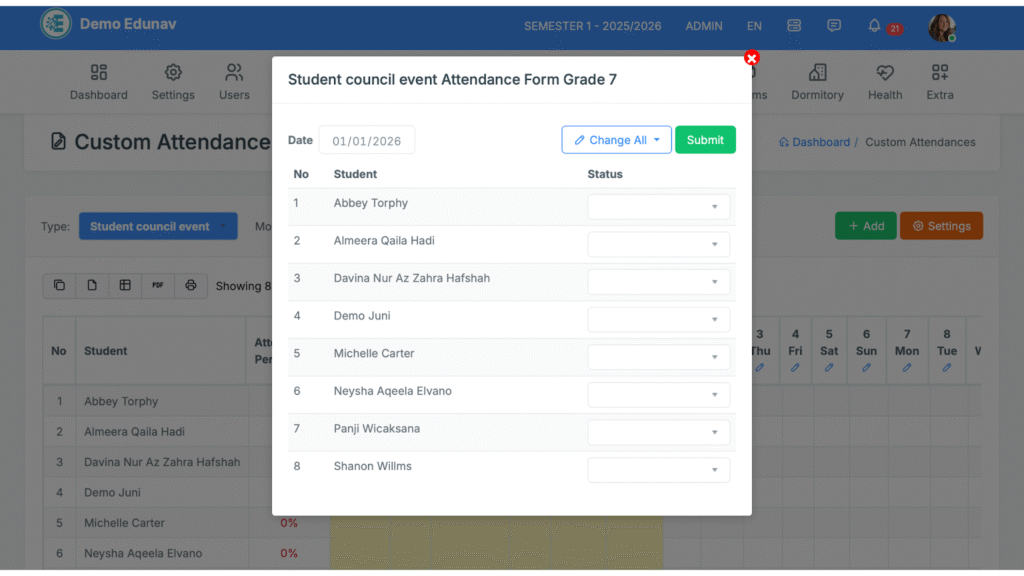
(Data entry by PIC)
7. Data Reporting and Export
Custom Attendance data can be further utilized through:
- Export data for internal school reporting purposes
- Integration into student report cards, if the school decides that activity attendance data should be included in assessments or final reports
This flexibility allows schools to use Custom Attendance data according to their academic and administrative needs.
8. Practical Application
For optimal results, schools are advised to:
- Determine the type of Custom Attendance activity at the beginning of the semester.
- Set clear access rights before data entry begins.
- Appoint a person responsible for filling in attendance for each event.
- Evaluate attendance data periodically.
9. Closing
Custom Attendance in Edunav helps schools record attendance for non-academic activities in a structured, secure, and flexible manner. With a per-semester storage system, clear access settings, and reporting and report card support, this feature ensures that every school activity is well documented and easy to manage.
For more information or implementation assistance, schools can contact the Edunav support team.
Manajerial Features › Academic › Lesson
- lesso list
- courses/LMS
- Report subject mapping
Manajerial Features › Academic › Clubs
Manajerial Features › Academic › Schedule
Manajerial Features › Academic › Lesson Plans
Manajerial Features › Academic › Academic Calendar
Manajerial Features › Academic › Exam & Reports
Manajerial Features › Academic › Term Reports
Manajerial Features › Academic › Student Absences
Manajerial Features › Academic › Attendances
Manajerial Features › Academic › Student Entry
Manajerial Features › Academic › Student Tags
Manajerial Features › Academic › Student Survey Progress
Manajerial Features › Academic › Discipline Management
Manajerial Features › Academic › Teaching Loads
Manajerial Features › Academic › Student Permission
Manajerial Features › Academic › Student Procurement
Manajerial Features › Academic › House Systems
Manajerial Features › Library › Library Modules
Manajerial Features › Library › Library Visitation
Manajerial Features › Administrator › User Management
Manajerial Features › Administrator › Role Management
Manajerial Features › Administrator › Permission Management
Manajerial Features › Administrator › Data Migration
Manajerial Features › Administrator › Parents Permissions
Manajerial Features › Administrator › Parent Statists
Manajerial Features › Administrator › User Login Statistics
Manajerial Features › Administrator › User Credentials
Manajerial Features › Administrator › E-Form Settings
Manajerial Features › Administrator › Export Data
Manajerial Features › Administrator › Storage Info
Manajerial Features › Guidance Counselor › Summary
Manajerial Features › Guidance Counselor › Statistics
Manajerial Features › Guidance Counselor › Reports
Manajerial Features › Finance › Summary
Manajerial Features › Finance › Transaction
Manajerial Features › Finance › Statistics
Manajerial Features › Finance › Budget
Manajerial Features › Finance › Presets
Manajerial Features › Finance › Staff Loan
Manajerial Features › Finance › Salary Slip
Manajerial Features › Finance › Payment Gateway Integration
Manajerial Features › Facility Management › E-Form
Manajerial Features › Facility Management › Inventory System
Manajerial Features › Facility Management › Facility List
Manajerial Features › Dorms Management › Permission
Manajerial Features › Dorms Management › Discipline
Manajerial Features › Dorms Management › Self Study
Manajerial Features › Dorms Management › Tutor Settings
Manajerial Features › HR Management › Staff Data
Manajerial Features › HR Management › Appraisals
Manajerial Features › HR Management › Staff Permission
Manajerial Features › HR Management › Staff Attendance
Manajerial Features › HR Management › Teaching Loads / Lesson Hour Distribution
Manajerial Features › HR Management › Retirement Info
Manajerial Features › HR Management › Medical Credit
Manajerial Features › HR Management › Payroll Slip
Manajerial Features › Public Relation › Student Registration
Manajerial Features › Public Relation › Marketing
Manajerial Features › Public Relation › School News
Manajerial Features › Public Relation › Announcements
Manajerial Features › Public Relation › Broadcast
Manajerial Features › Public Relation › School Stories
Manajerial Features › Public Relation › Parent Survey
Manajerial Features › School Clinic › Medical Records
Manajerial Features › School Clinic › Health Information System
Teacher Features › Academics › LMS
3.1 Courses > Learning Management System (LMS)
Click the courses menu to see all the courses you teach
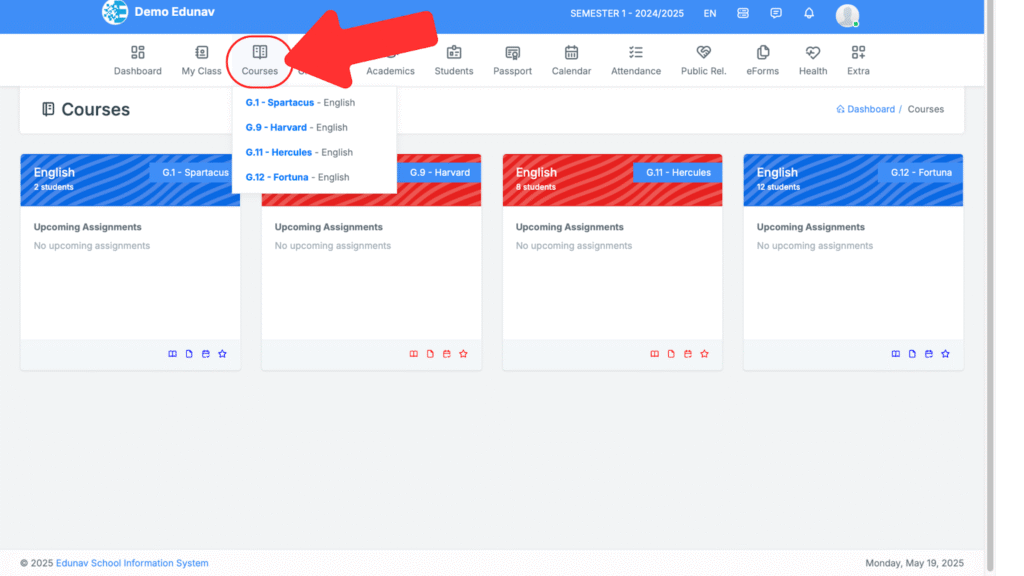
Once you click on a course, you will be taken to the LMS page. This is where you teach and interact with your class.
- You can change the LMS icon to your preference
- You can switch to another course on the LMS page
- You can use the LMS toolkit for quick access
- creation for stream, syllabus, assessment, discipline point
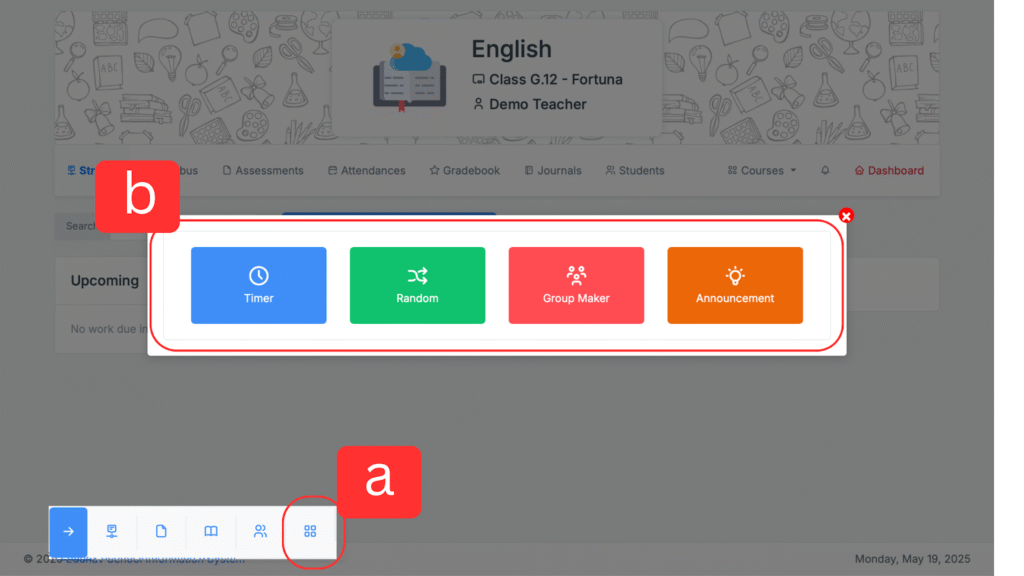
- Toolkit
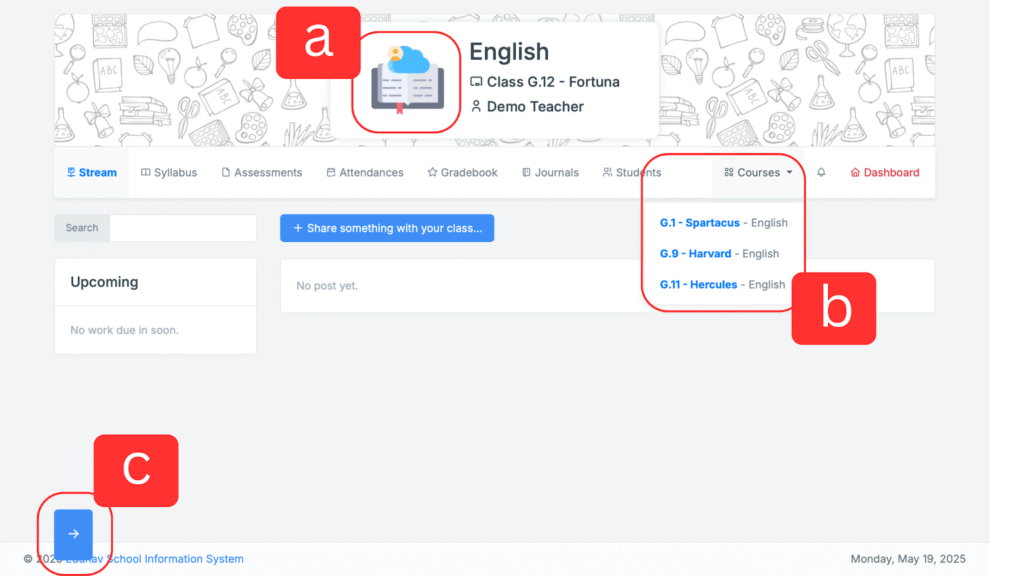
Quick action
- Toolkit
- Timer, Pick Random Student, Create Group, Announcements
3.1.1 Stream
- Used to post something to discuss or updates for students.
- Teachers can share messages, links, attachments, and schedule posts.
- Click the “+” icon to add new material to the stream.
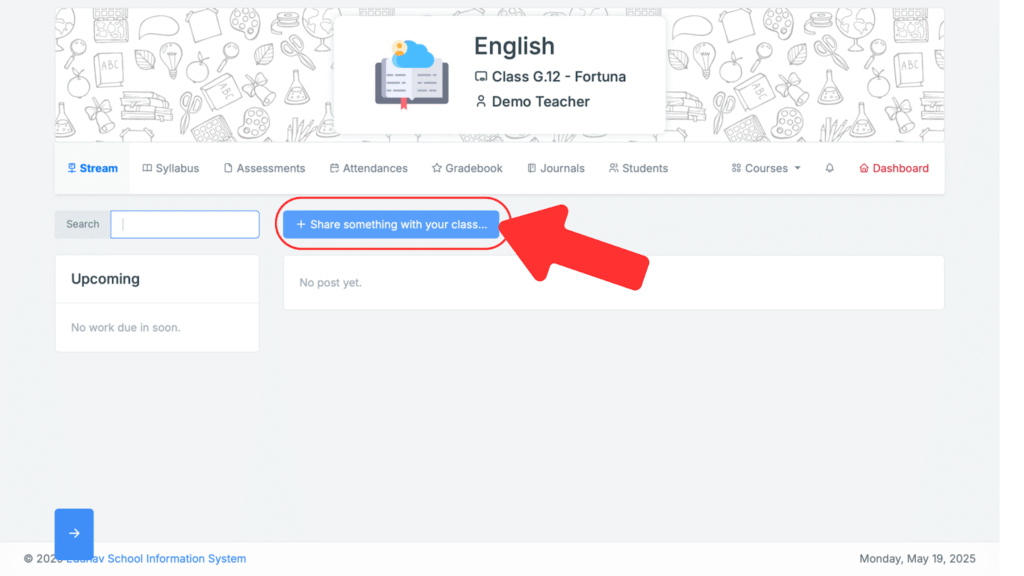
- Click the “+” icon to add new material to the stream.
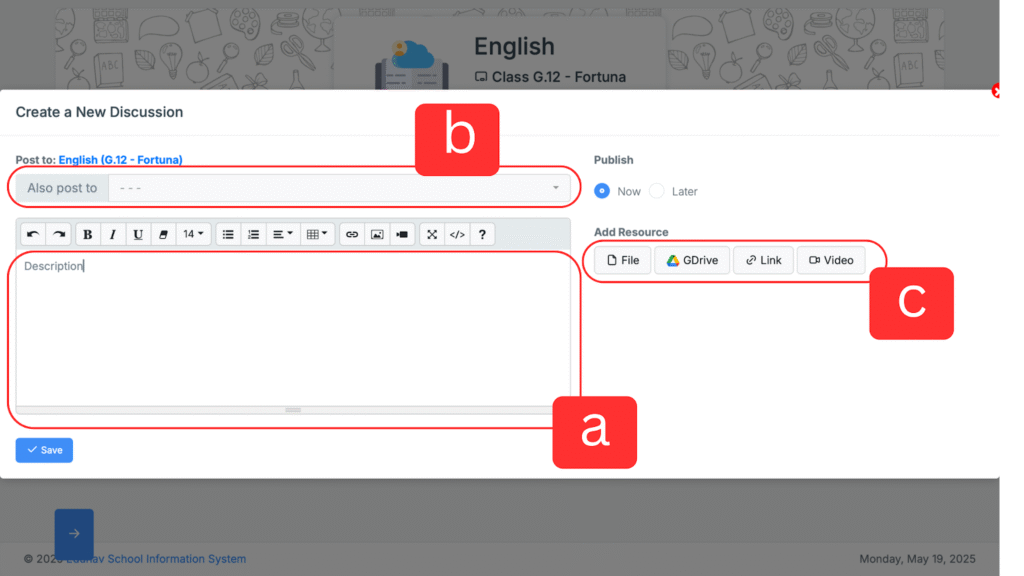
- You can provide a description of what you want to discuss with the class. You can send links, videos, or files.
- You can post your materials in other classes you teach.
- You can add files from Google Drive.
3.1.2 Syllabus / Materials
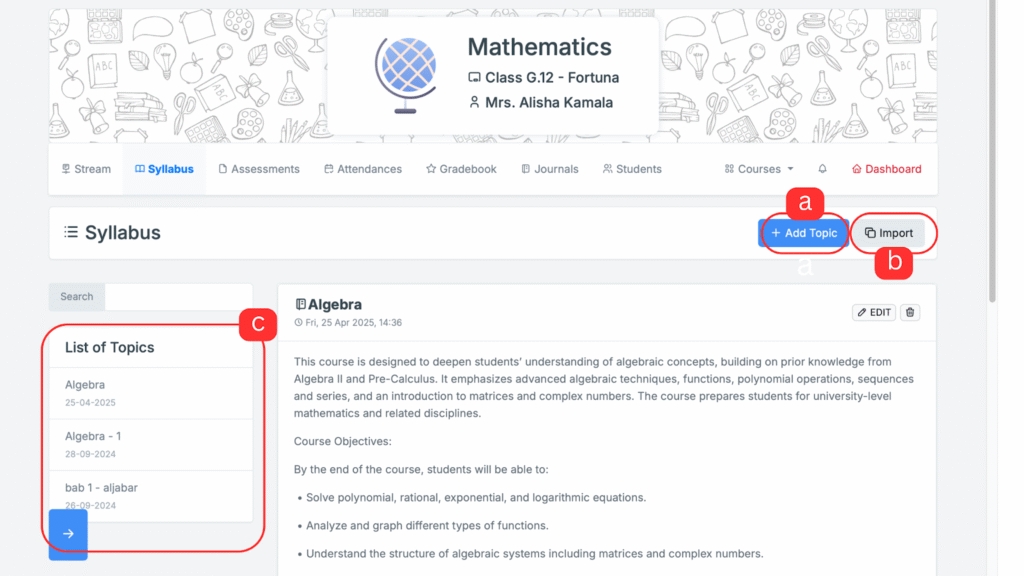
The Syllabus Module allows teachers to create, manage, and share detailed course outlines with students. This includes learning objectives, content breakdown, and relevant topics or units per course.
- Add Topic: Button to create a new topic for the course.
- Import: Allows the teacher to import existing syllabus templates or topics from other semesters.
- List of Topics: Sidebar showing all created topics for the course, organized by title and date.
3.1.3 Assessment
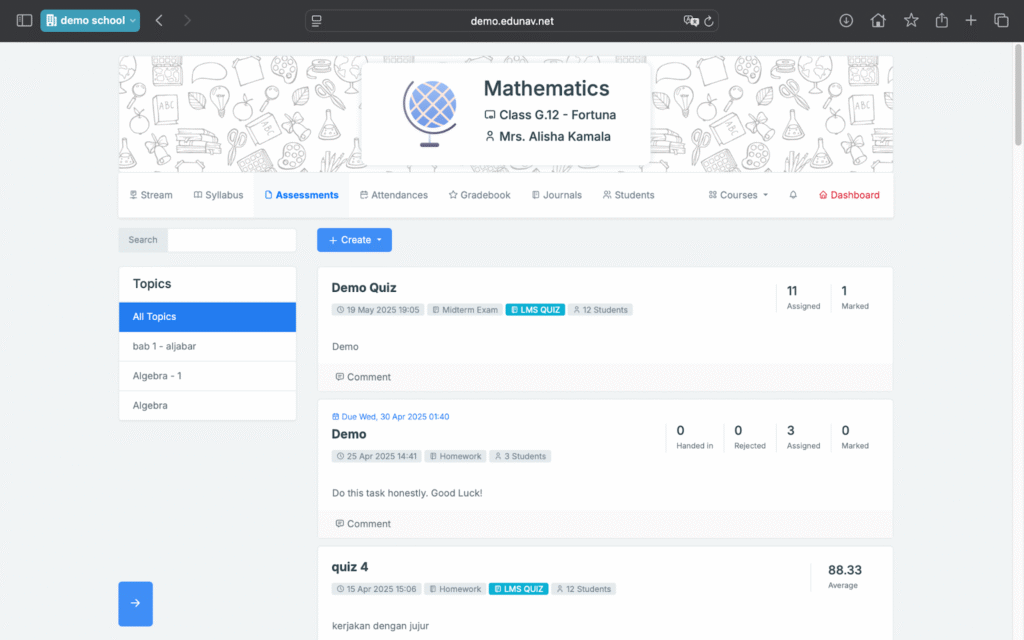
The Assessment Module enables teachers to create, assign, and monitor assessments. This feature is designed to support CBT assessments. Schedule availability, set time limits, and assign grading criteria.
3.1.3.1 New Assessment that Student Need to Submit Their Answers inside Edunav System
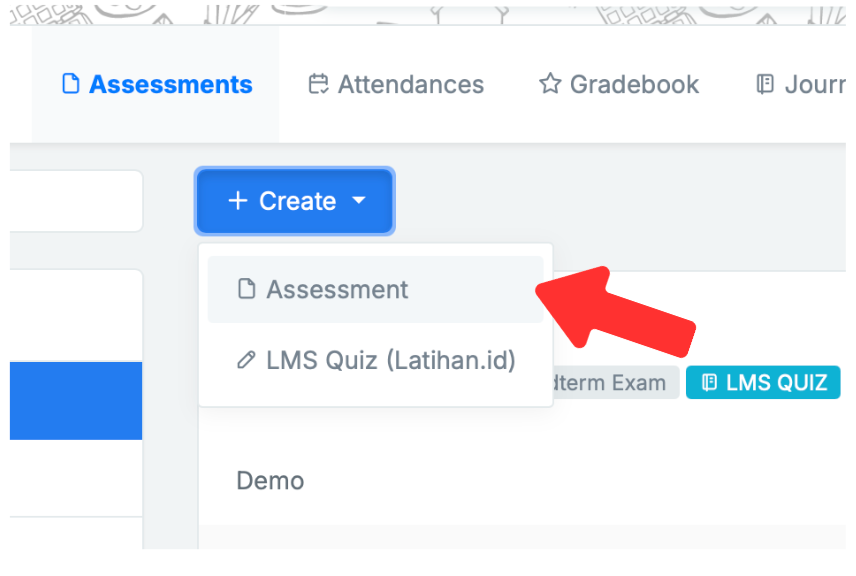
Click the “create” button then click the assessment button
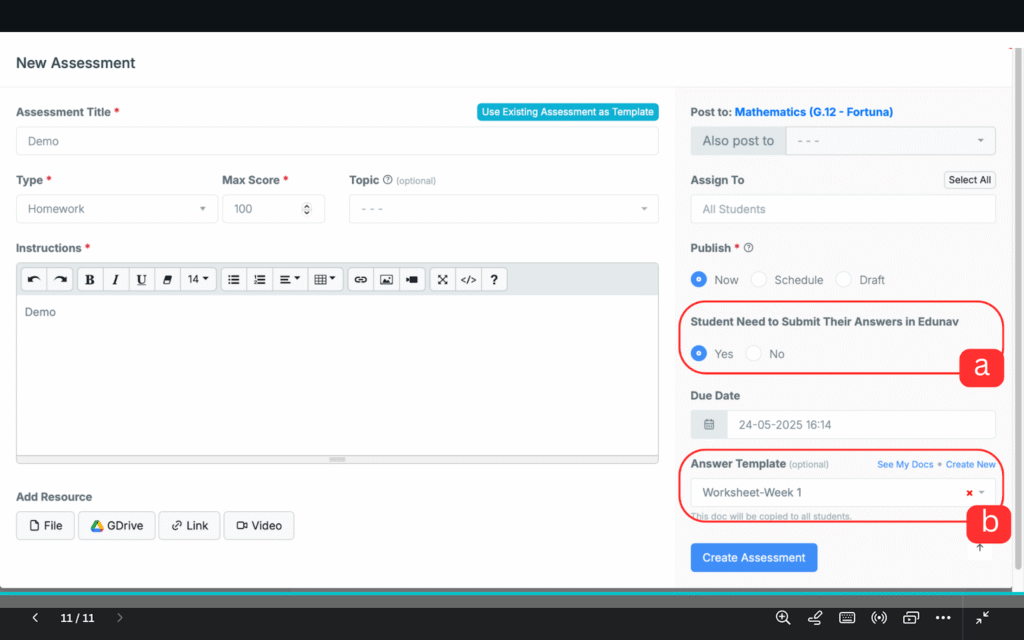
Fill the Assessment Content. Teachers can provide instructions in the form of text descriptions and teachers can attach files from links or from drives if necessary.
- Click “yes” for assignments that students need to complete in the system, students will work using Edunav documents.
- Teachers can create question sheets in Edunav Docs or choose a question sheet template that has been created in Edunav.
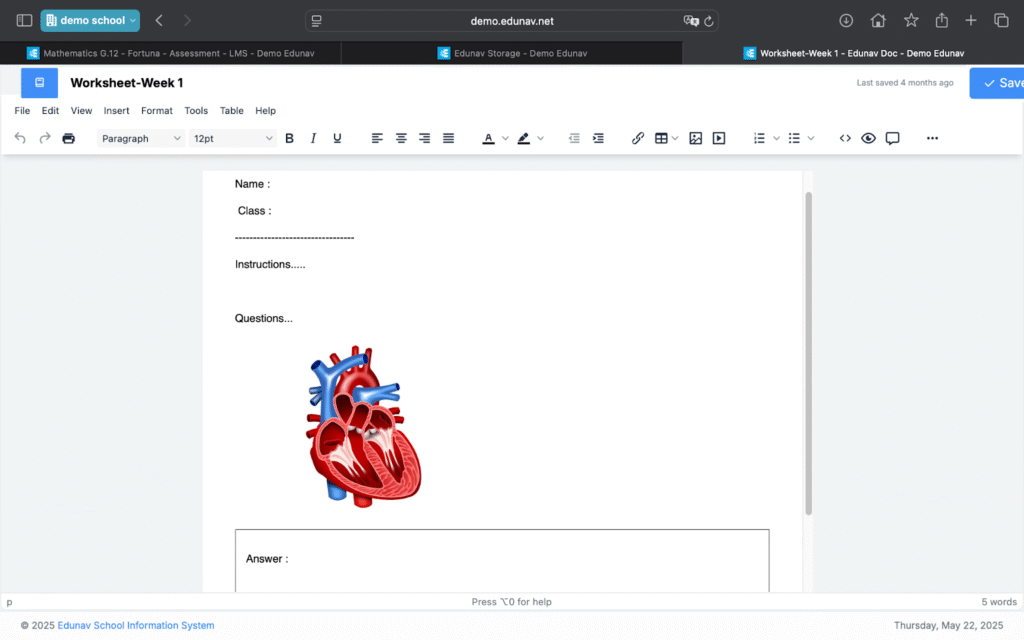
By using Edunav Docs, teachers can create student answer sheets according to teacher needs.The features in Edunav Docs are more or less the same as Google Docs. Below is an example :
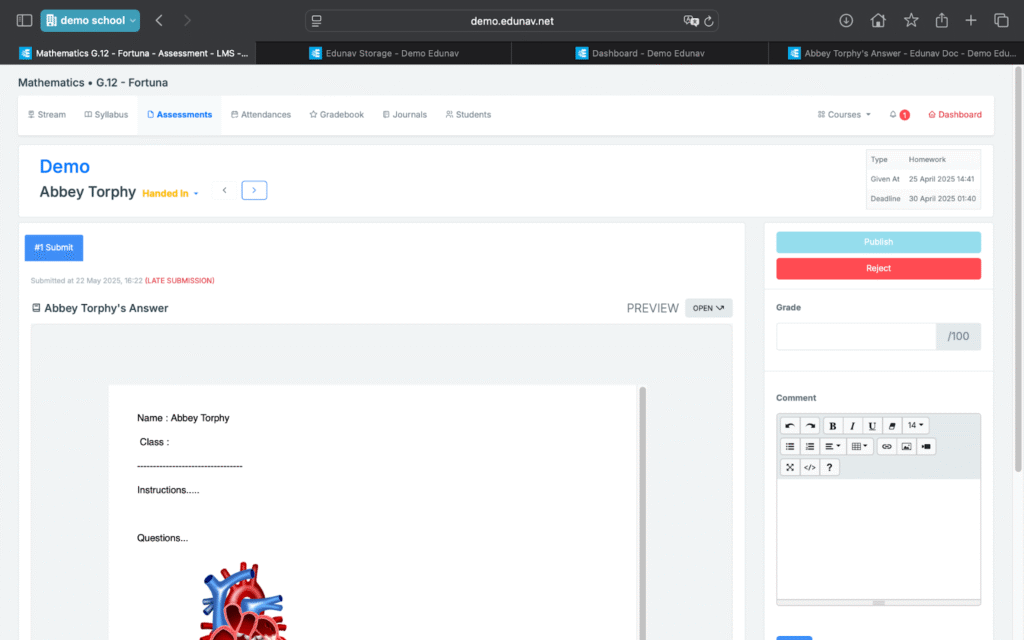
Once you create a task, you can preview it. you can click the student work button to see the work done by students
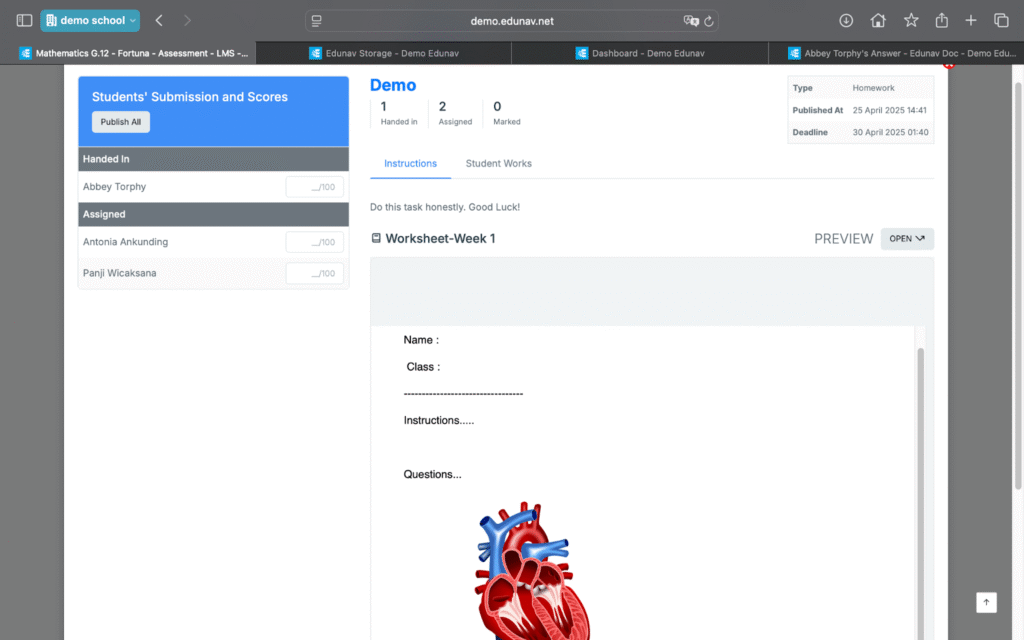
After the teacher clicks the “students work” button, the teacher can check the students’ work and assessments.
3.1.3.2 New Assessment that Does not require Student Need to Submit Their Answers inside Edunav System
Click the “create” button then click the assessment button
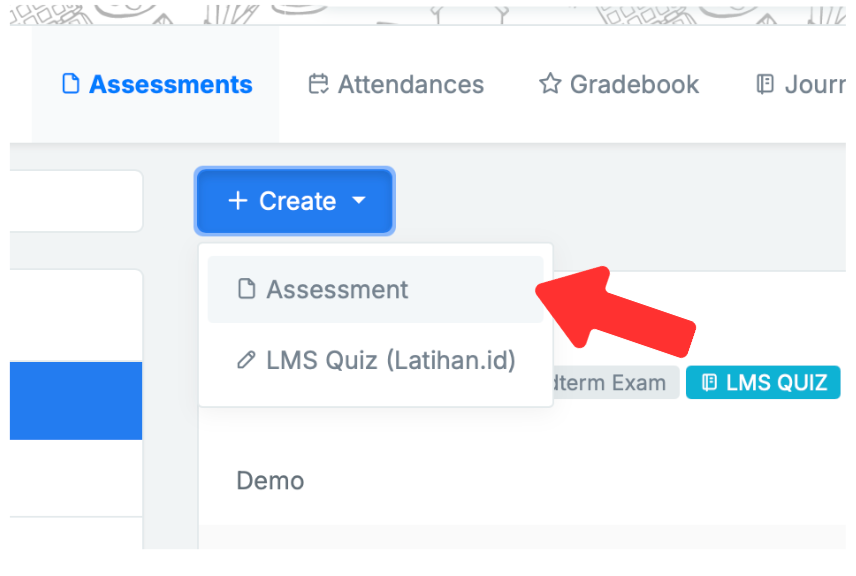
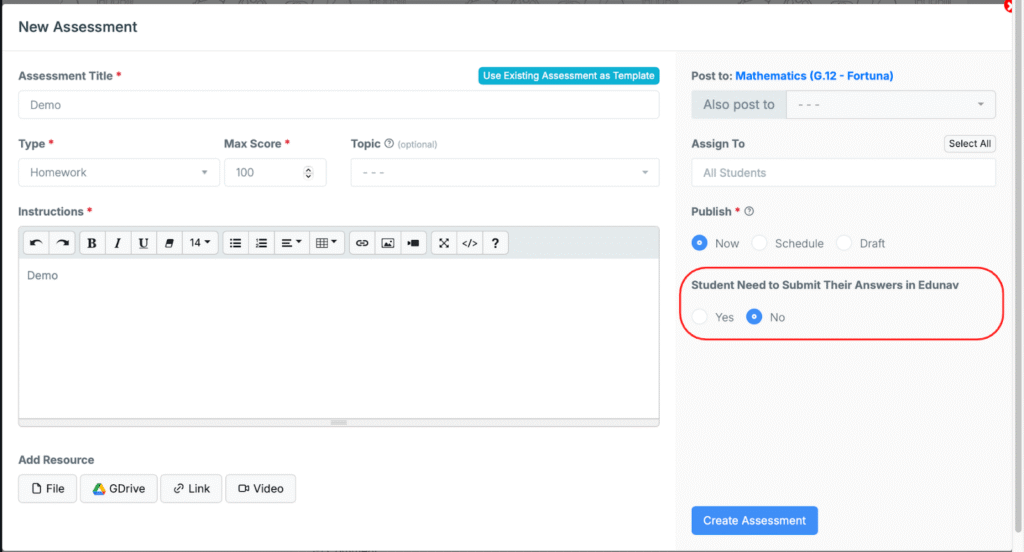
Fill the Assessment Content. Teachers can provide instructions in the form of text descriptions and teachers can attach files from links or from drives if necessary.
- Click “no” for assignments that students complete outside the system, such as submitting physical assignments or working in specific books.
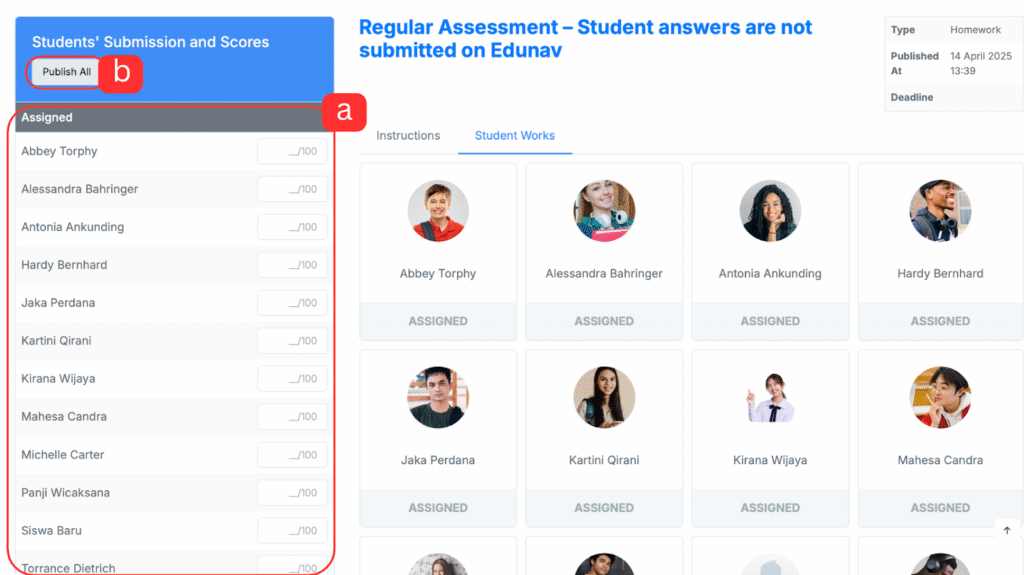
After the teacher creates an assignment, the teacher can input the score for the assignment that has been created.
- Input score
- publish the score to student and parent
3.1.4 Gradebook
When a teacher creates a new assignment in the LMS, a gradebook column for that assignment will be created automatically. Auto-syncs scores from assignments. In these columns that have been created, like in Excel, teachers can copy and paste. Below is an example :
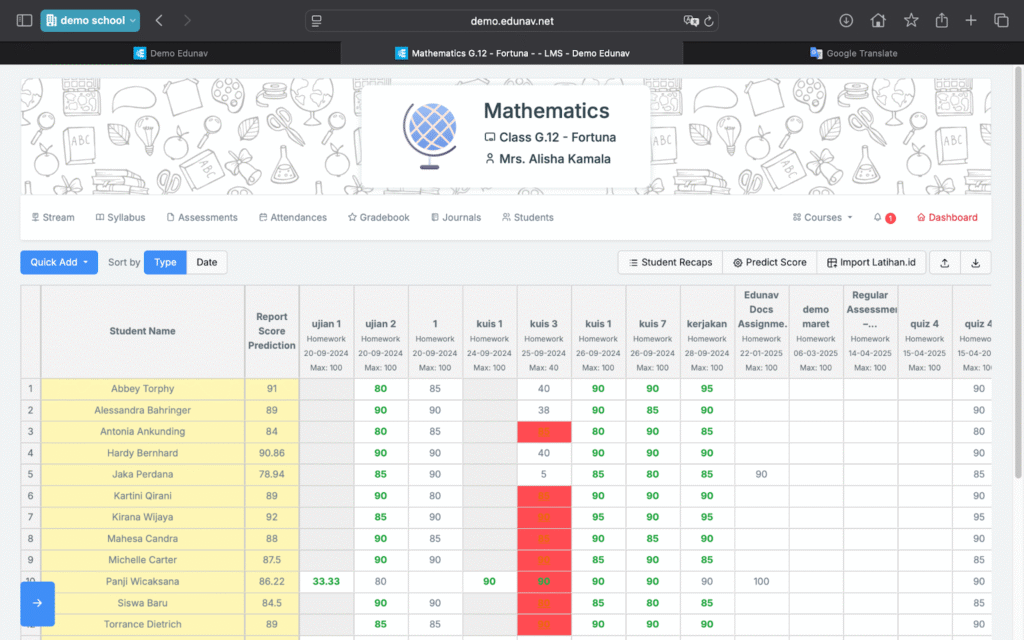
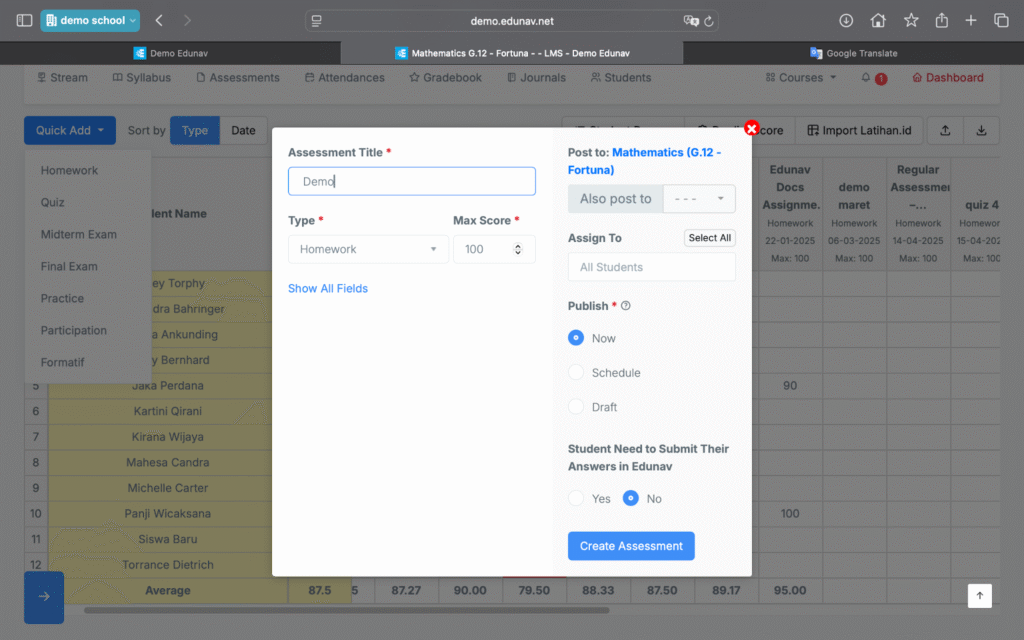
To add a new assessment column directly, teachers can click the “quick add” button. and fill in the assessment description
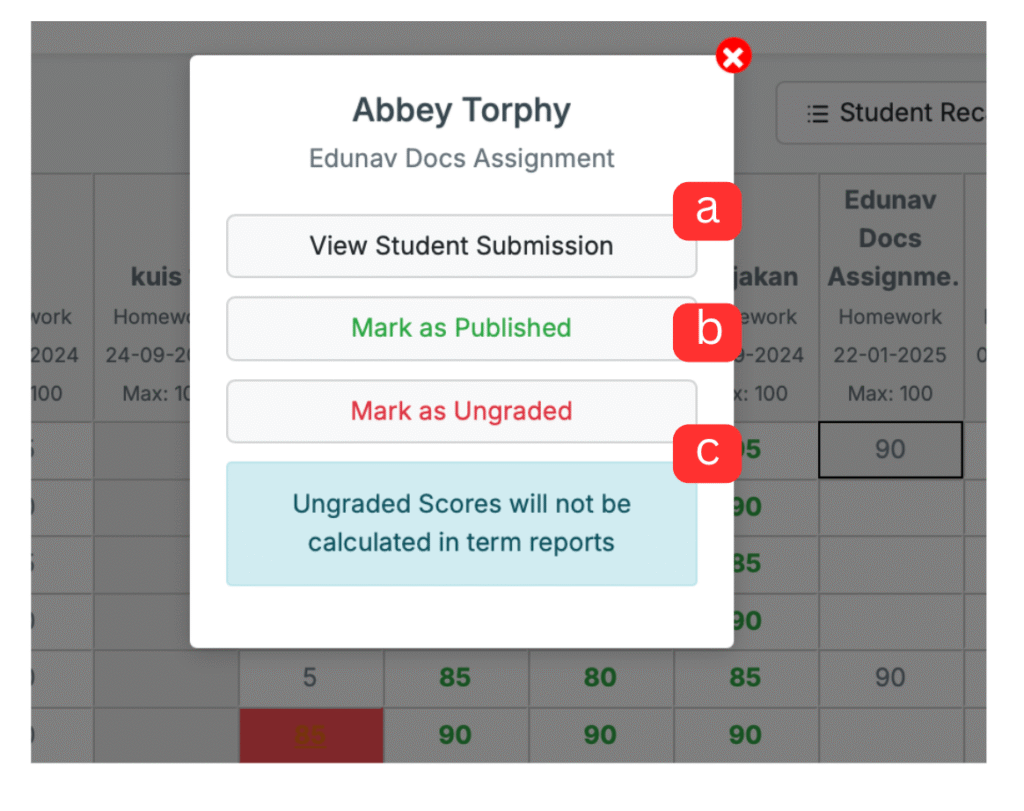
Teachers can perform several actions by right-clicking on a particular student’s grade
- reviewing student assignments
- publishing grades which means students and parents can see the grades
- ungraded score which means removing the score from the term report calculation
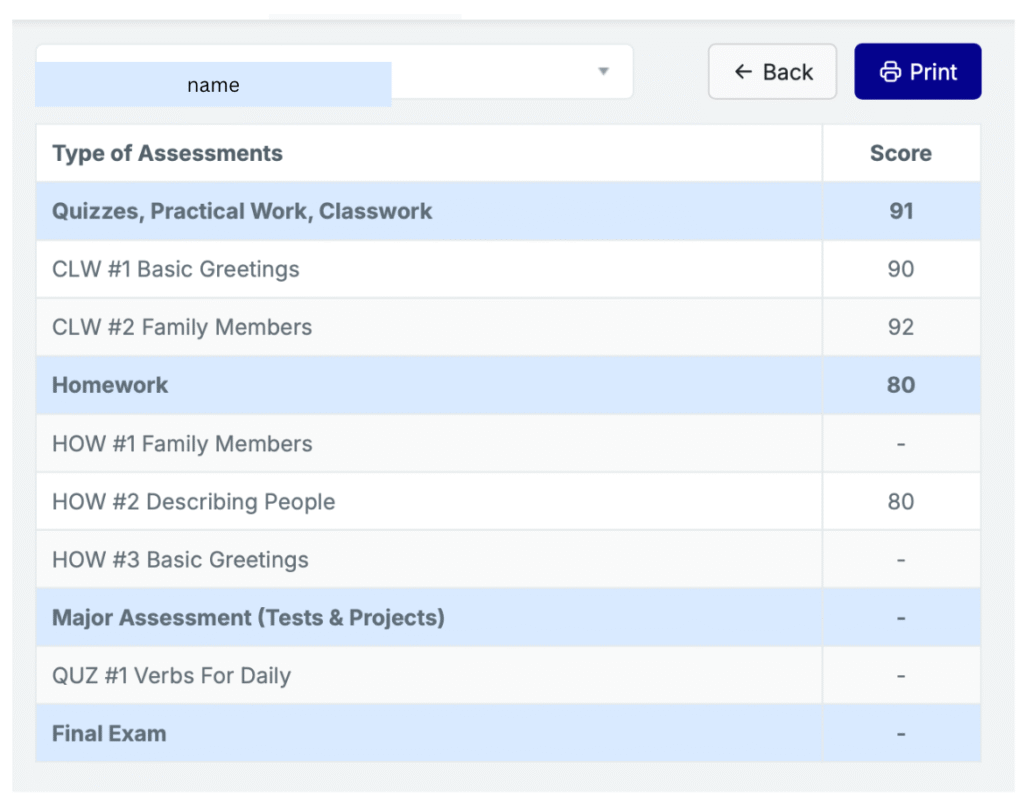
3.1.4.1 Student Recap
The Student Recap feature provides a summary of a student’s performance across all assessments within a subject.
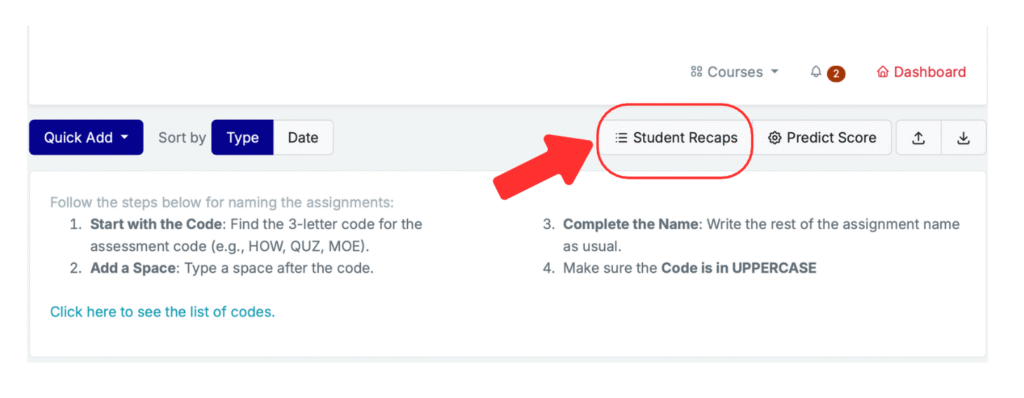
The Student Recap data is compiled from all gradebooks. Only gradebook entries that have been marked as “Published” will appear in the Student Recap.
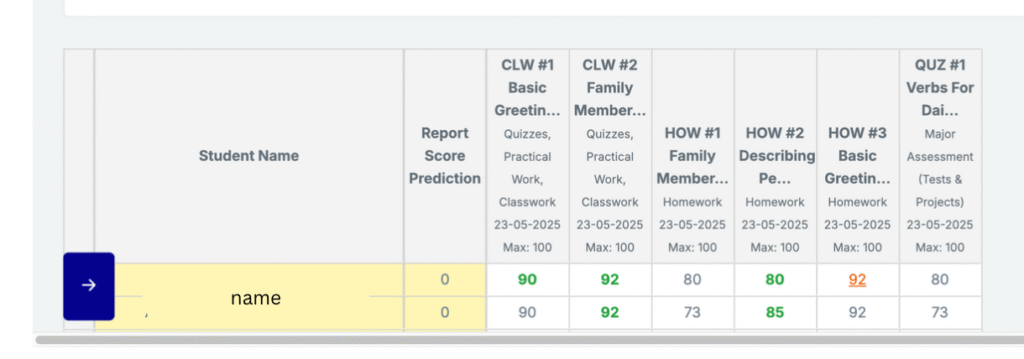
The Student Recap can be exported to PDF for easy reporting. The print layout can be customized to match the school’s specific requirements.
3.1.5 Gradebook (Using Learning Objective (LO))
Teachers in lower grades (Grade 2 below) can access the gradebook and already have a list of LO (learning objectives) that will be activated in the beginning of the academic year/semester by the Administrator. Teachers can directly give scores to specific students in the specific LO. Maximum score is 4.
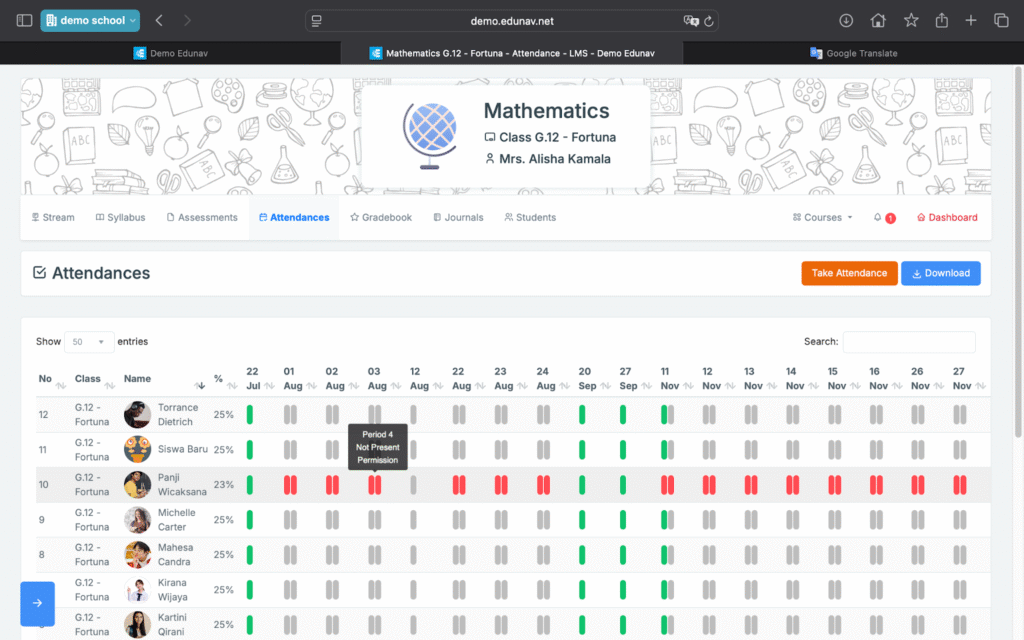
3.1.6 Course Attendance
Record student attendance at each learning session with the status: Present, Tardy, Absent, Permission.
- Green = present
- Grey = attendance has not been taken
- Red = student has received permission to be absent from the school
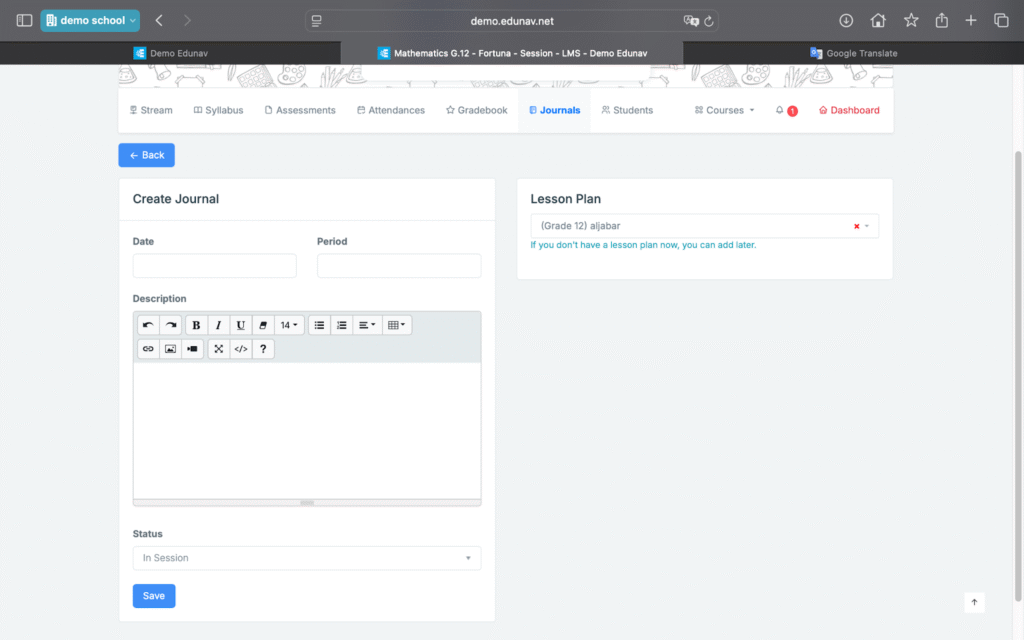
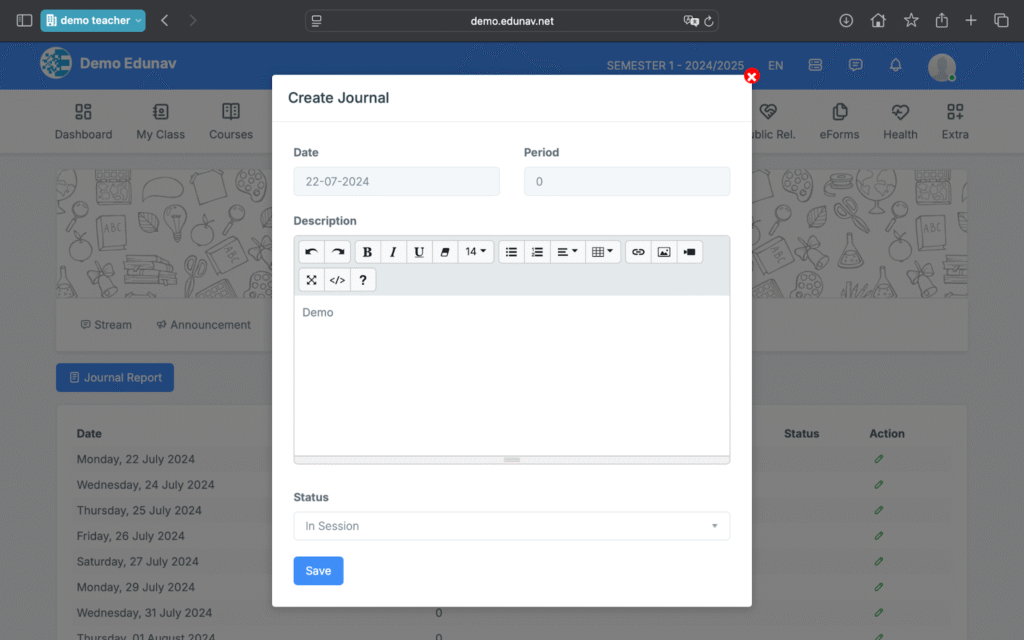
3.1.6 Journals
Document student learning reflections or daily summaries.
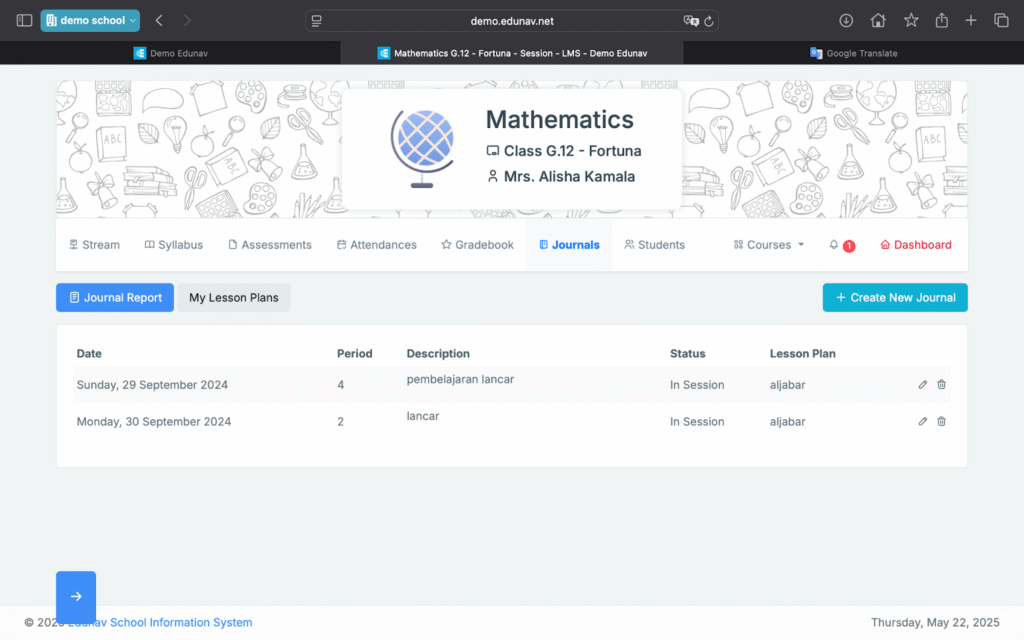
Teachers can describe the learning process and can also attach lesson plans that have been made.
3.1.7 Disciplinary action
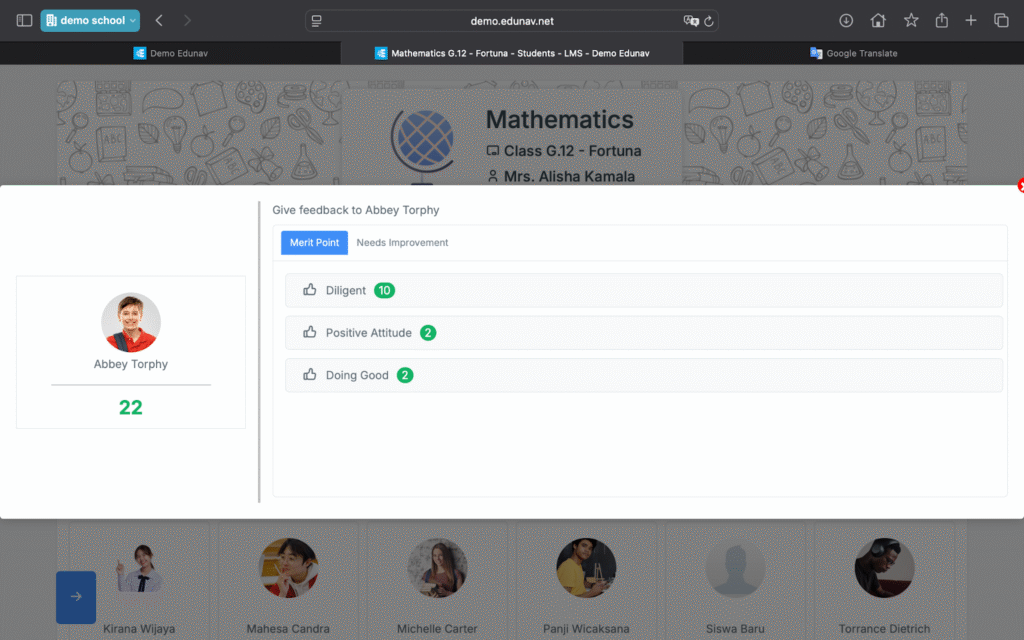
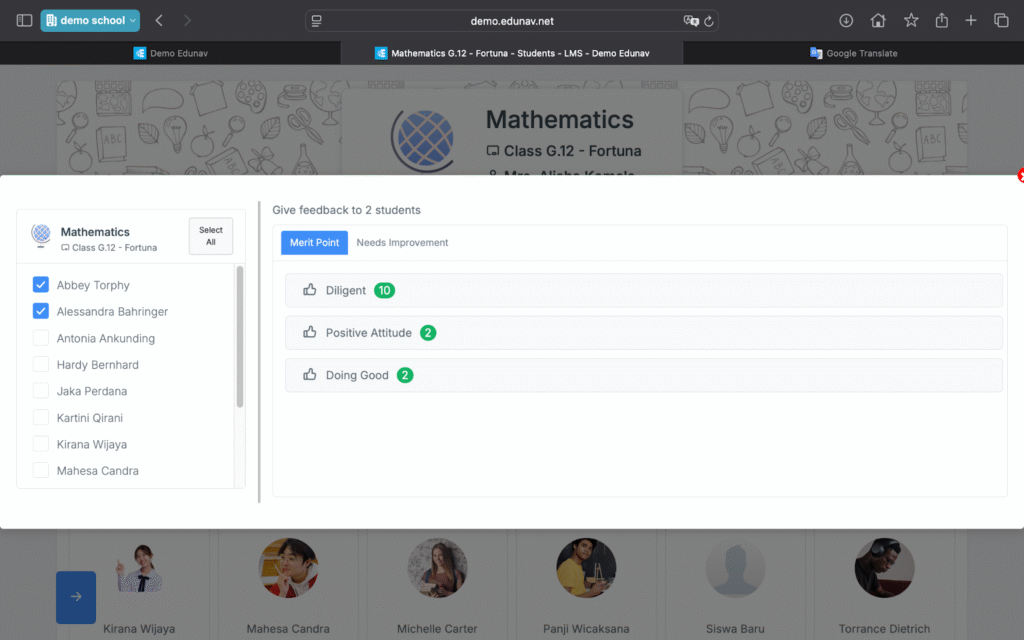
Add positive or negative discipline points to students from LMS.
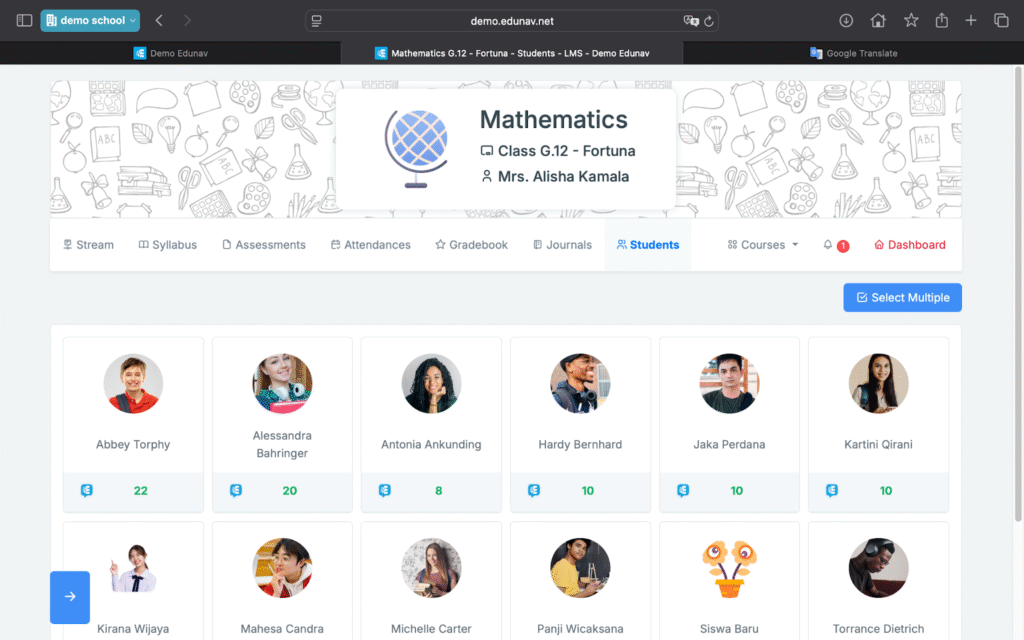
Discipline points can be added per student by clicking on the specific student’s name.
Discipline points can be added in bulk by clicking the “select multiple” button and then selecting the student names.
3.1.8 Disciplinary action From Menu
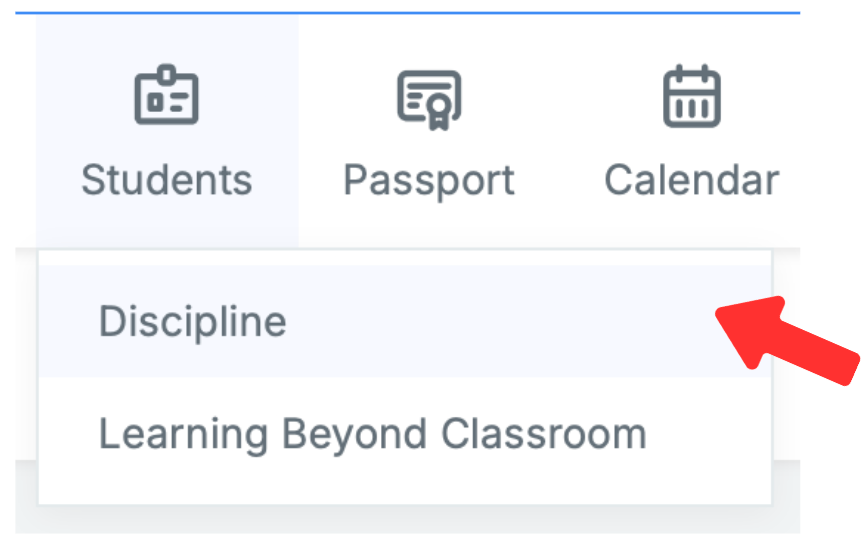
Go to Menu, Student > Discipline
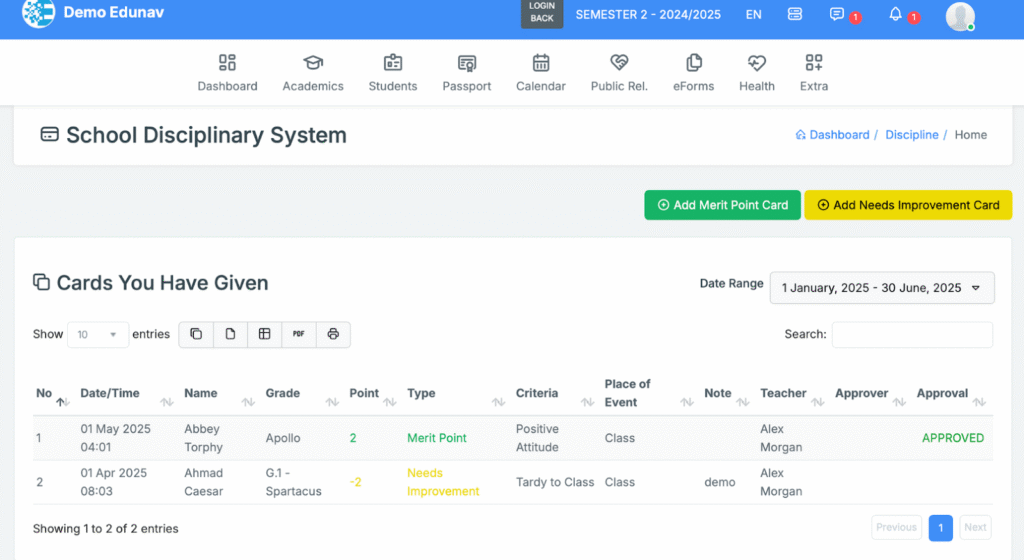
In Edunav, the Merit Point system is used to recognize and encourage positive student discipline.
- ✅ Positive Discipline: When a student earns a merit point (e.g., for helping others, showing leadership, etc.), the point is immediately recorded and visible to the student.
- ⚠️ Need Improvement points (for minor misbehavior or areas for growth) require management approval before they are recorded in the system and shown to the student.
Teacher Features › Academics › Course Schedule
3.2 Course Schedule
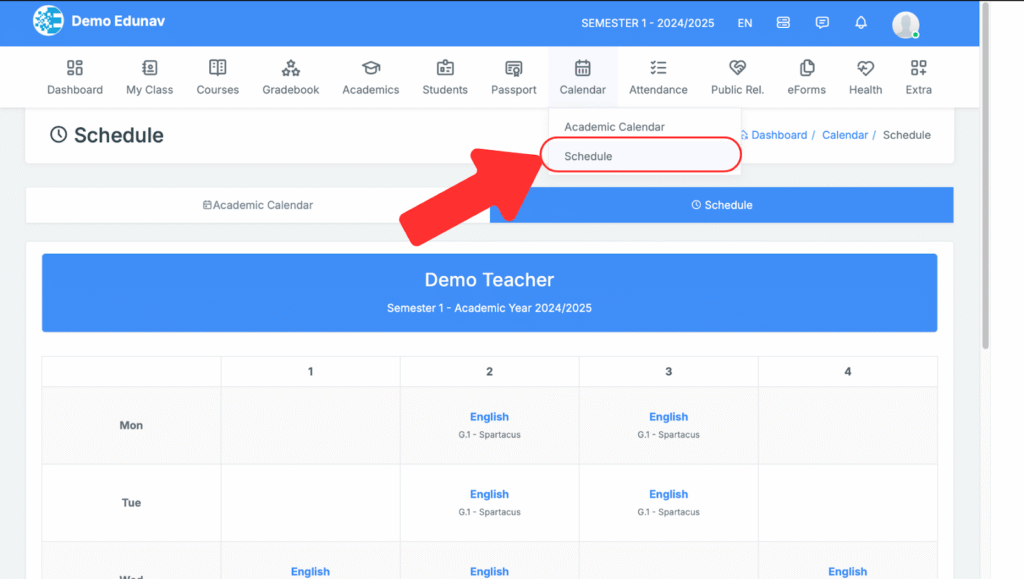
Go to Calendar > Schedule
- View your teaching timetable by week. Courses are color-coded and clickable for quick navigation to course details.
Teacher Features › Academics › Student Progress Tracking
Teacher Features › Academics › Exam
Teacher Features › Academics › Club/Extra Curricular
3.4 Club / Extra-Curricular
Manage extracurriculars. Go to Menu > Academic > Club
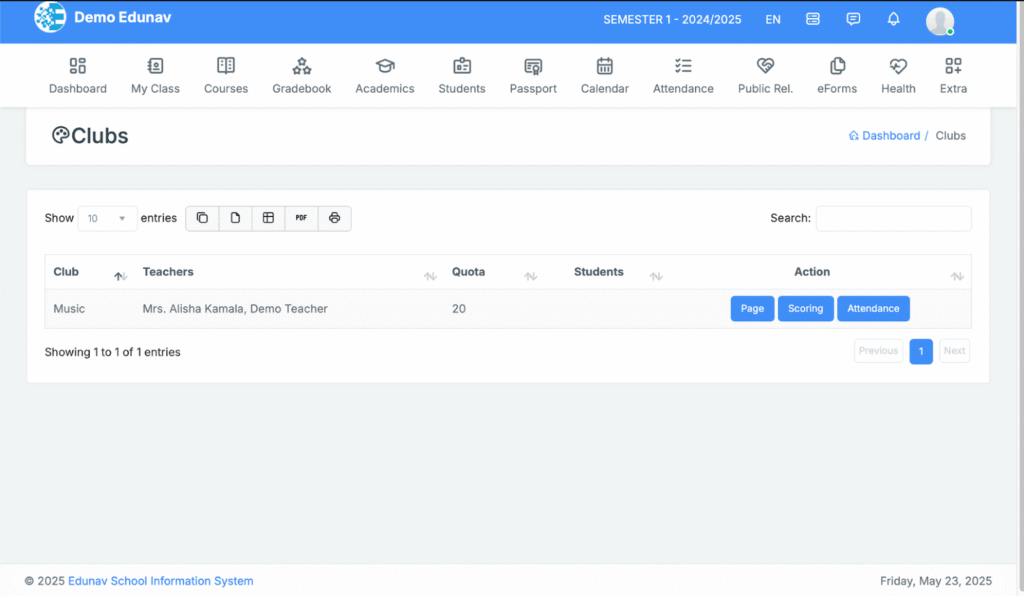
Open the club page
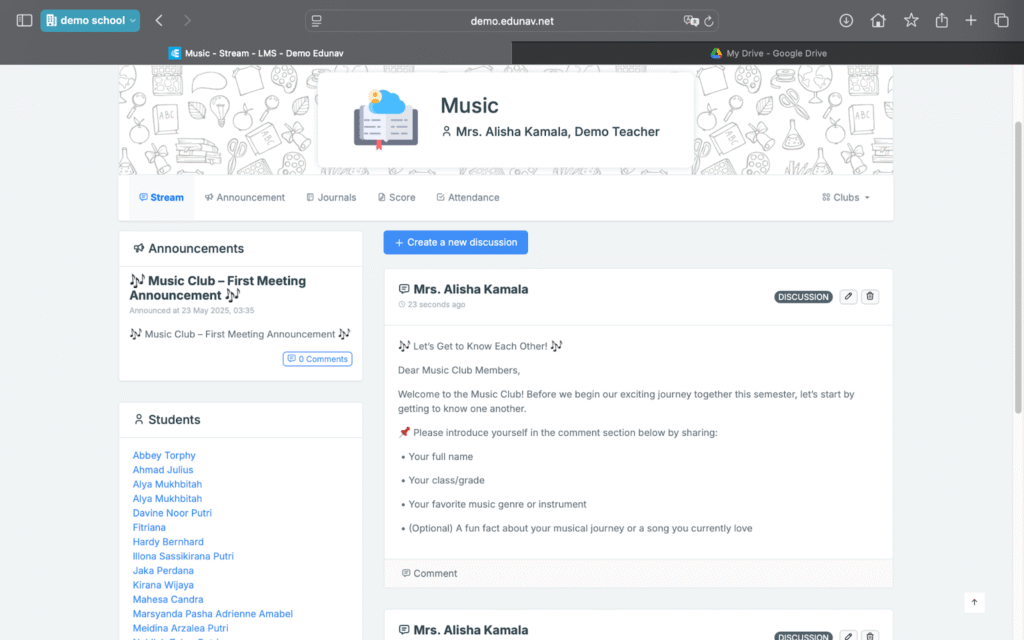
Create a New Discussion
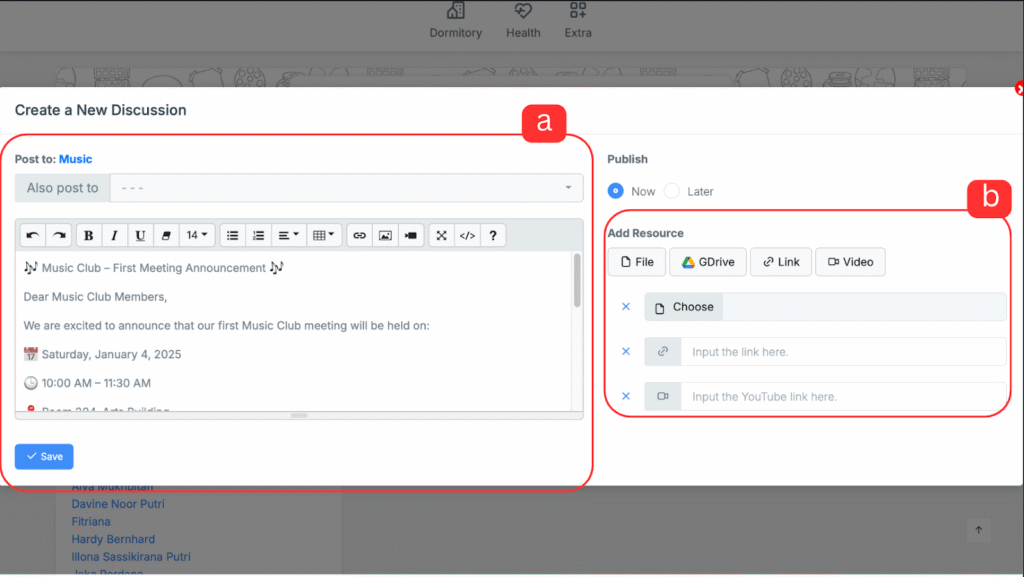
- Give a description
- attach files from various sources
Documenting student learning reflections or daily summaries of extracurricular activities
Teacher Features › Academics › Co-Curricular/Project
Teacher Features › Academics › Calendar Academic
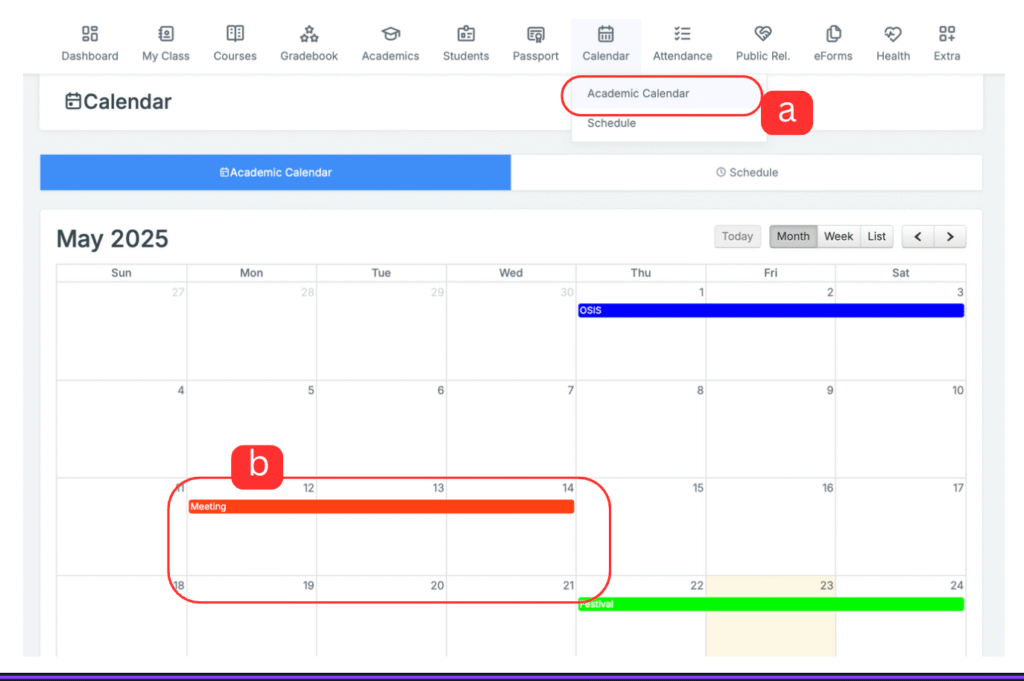
3.3 Calender
View the school’s academic events, including term dates, holidays, and important academic deadlines.
- Go to Calendar > Academic Calendar
- Active Event
Teacher Features › Academics › Tahfidz System
Teacher Features › Academics › LBC & House System
Teacher Features › Academics › Library System
Teacher Features › Administrative › Course Attendance
Teacher Features › Administrative › Staff Attendance
Teacher Features › Administrative › Lesson Plan
Lesson Plan
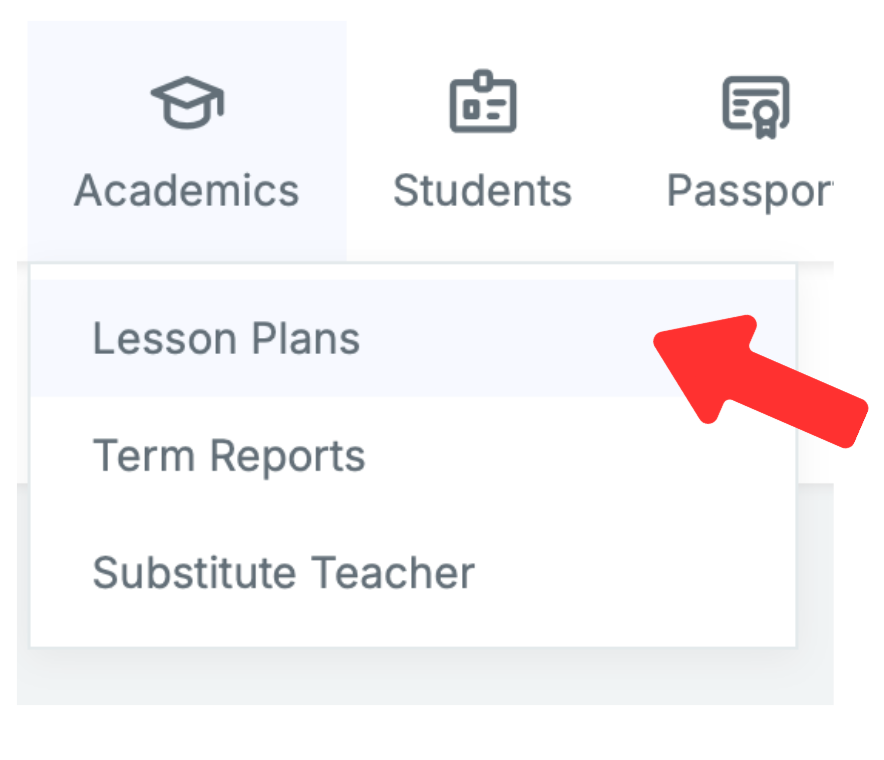
Go to Menu, Academics > Lesson Plans
Submit and manage your weekly or term-based lesson plans. Administrators can review and provide feedback directly within the platform.
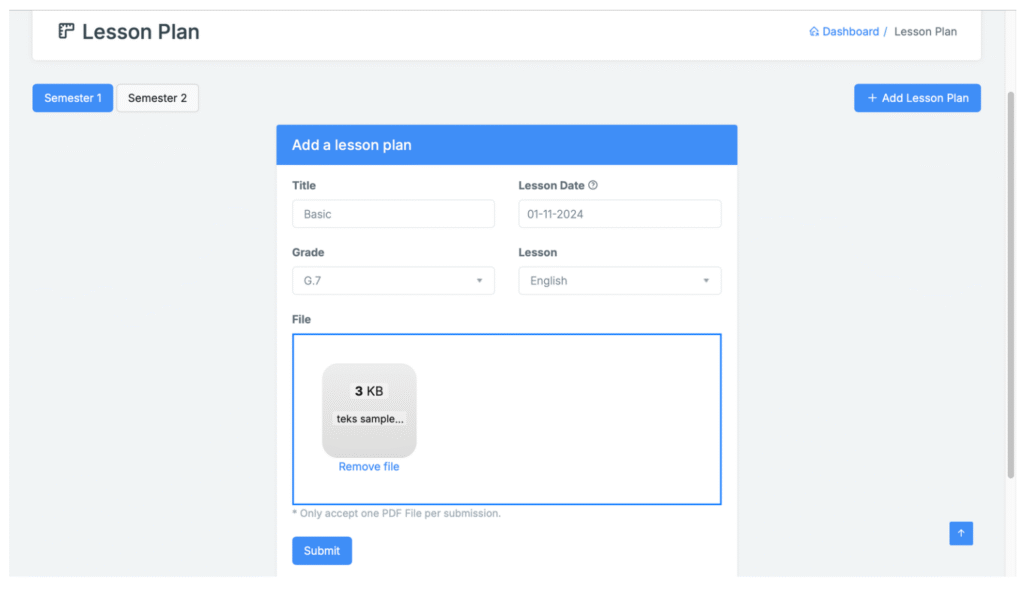
Prepare the lesson plan file in pdf format (later on the URL field will be added) to be uploaded to the Edunav system. Submit your lesson plan. Click “add lesson plan”. Fill the description. Submit.
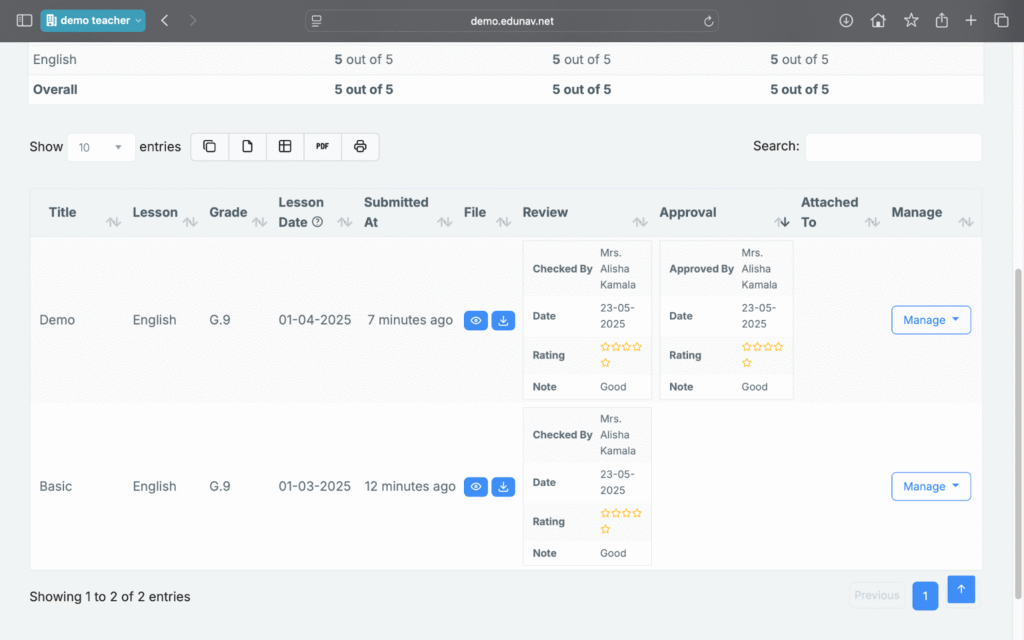
The school will conduct a review and approval. Once the lesson plan is approved. The lesson plan can be used in the journal on the LMS course.
Teacher Features › Administrative › Term Reports
Teacher Features › Administrative › E-Forms
Teacher Features › Administrative › Health Information System
Teacher Features › Professionalism › Teacher Portfolio/Certificates
Teacher Features › Professionalism › Appraisal
Teacher Features › Professionalism › CPD
Teacher Features › Professionalism › Student Survey
Teacher Features › Communication › Chat
6.1 Chat
Real-time messaging system for communication with students, fellow teachers, non-teaching staff and also school management.
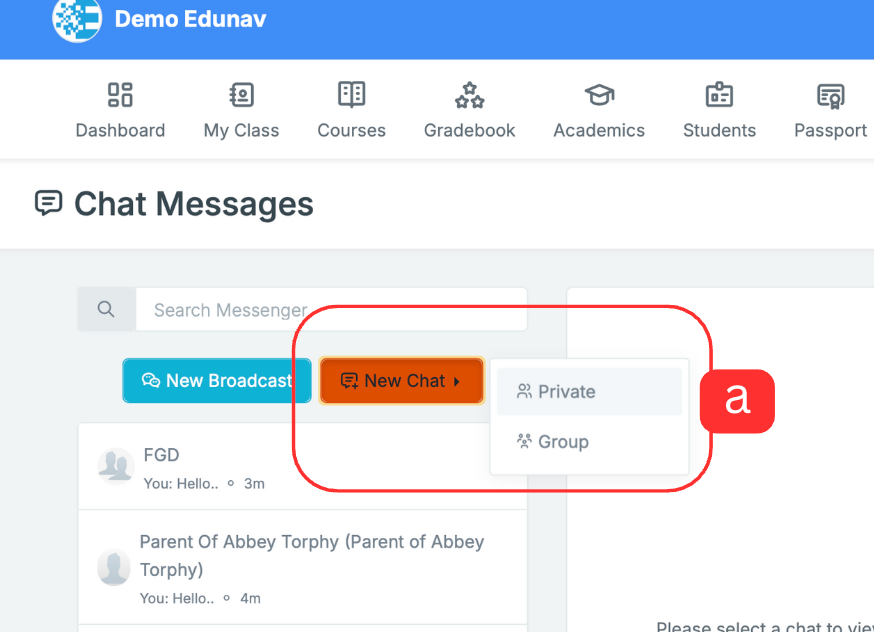
– Click Edunav Chat Icon in the top toolbar
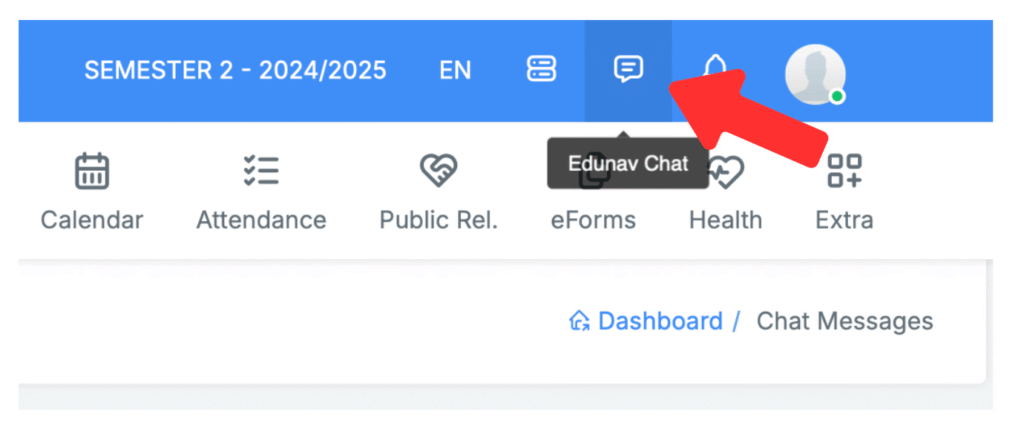
– Click “new chat” then select message type
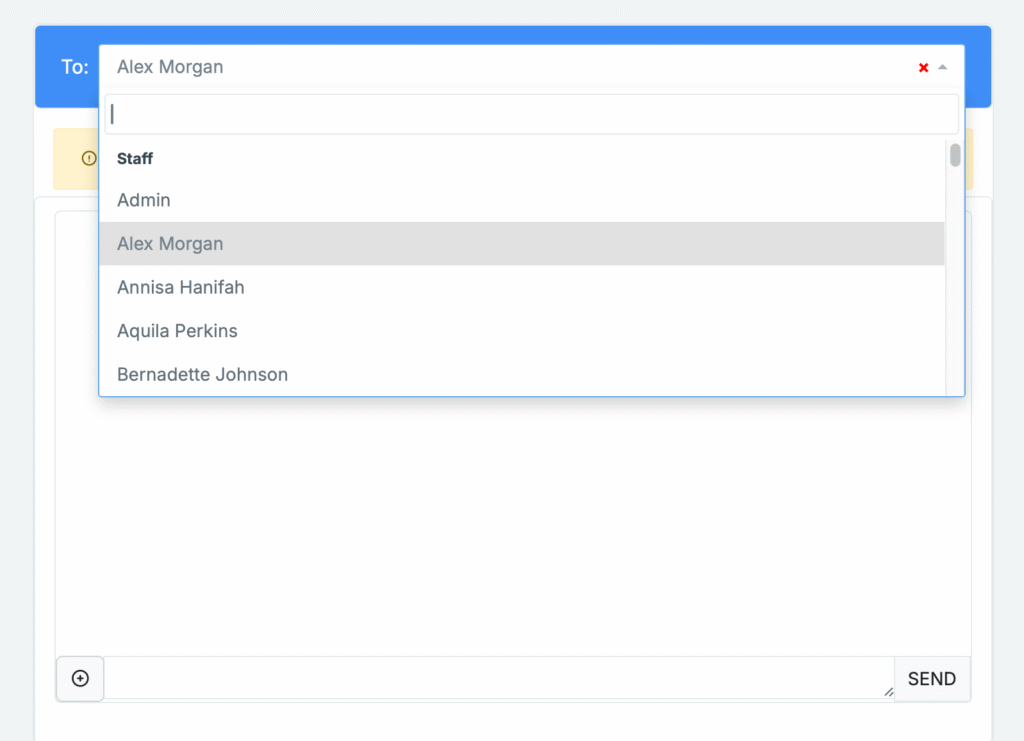
– select the users as message recipients. Teachers can send messages to other staff (teaching, non-teaching, and school management), students and parents as well.
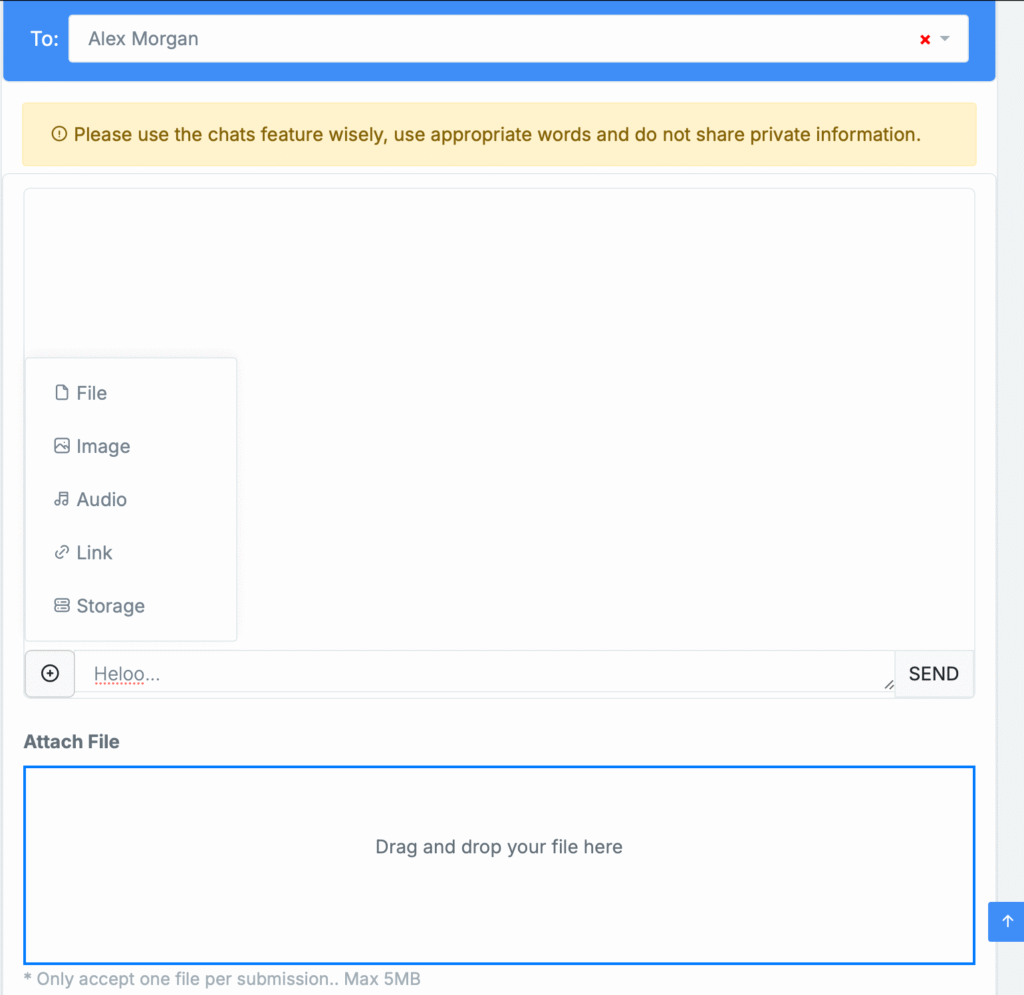
– Users can send text messages and attached files, links or images.
Teacher Features › Communication › News
6.2 News
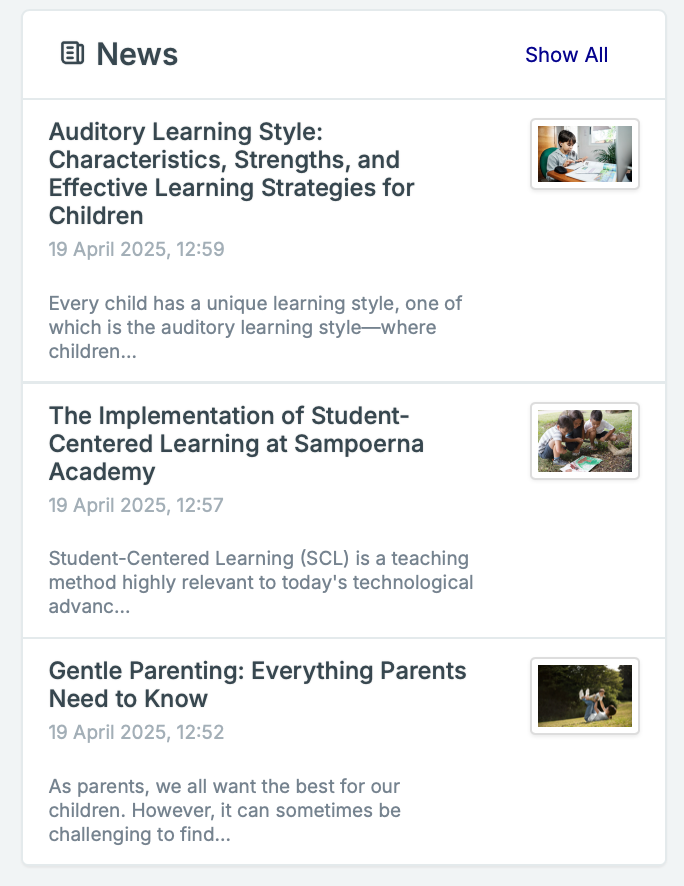
Read school-wide or department-wide news bulletins.
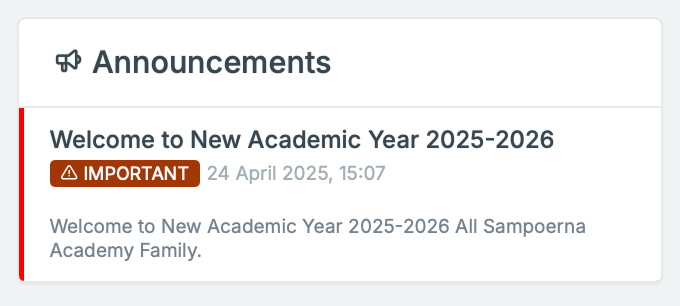
Teacher Features › Communication › Announcement
6.3 Announcement
see announcements published by the school
Teacher Features › Communication › Stories
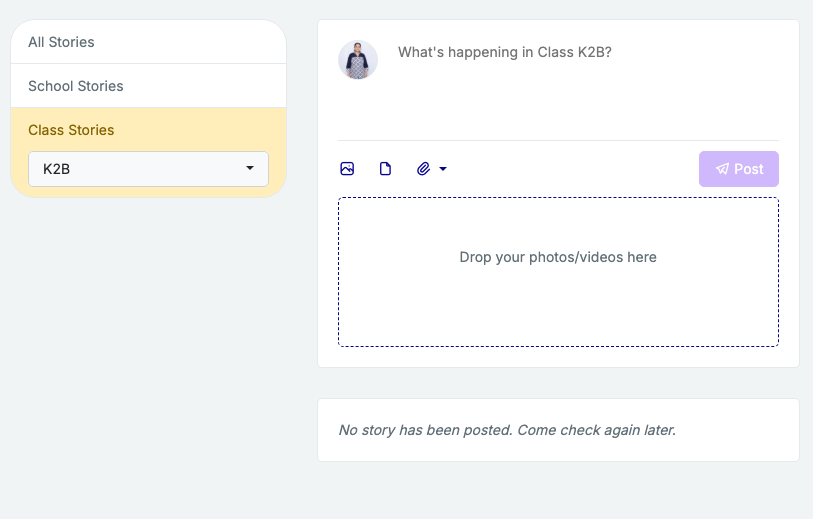
6.4 Stories
Edunav Stories is an internal school social media that can be used by teachers and homeroom teachers to send content or documentation of activities with students in the classroom, which will be seen by all school members including parents.
– Write down the post contents
– Attachment can be added from images, videos, documents, links or embed files from google drive or youtube videos
Homeroom Teacher Features › My Class › Class Summary
My Class
My class menu Displays a comprehensive class overview, including student count, attendance trends, academic performance summary, and recent behavioral or counseling records. Allows Homeroom teachers to view all of their Homeroom class data.
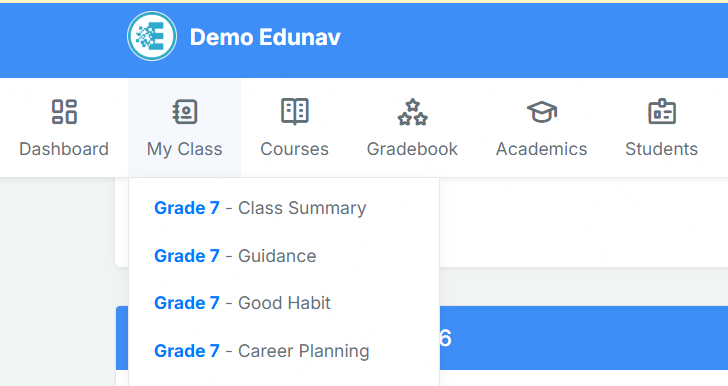
Class Summary
Displays a comprehensive overview of the class, including the number of students, attendance trends, academic performance summaries, and recent behavioral or counseling notes.
Homeroom Teacher Features › My Class › Class Schedule
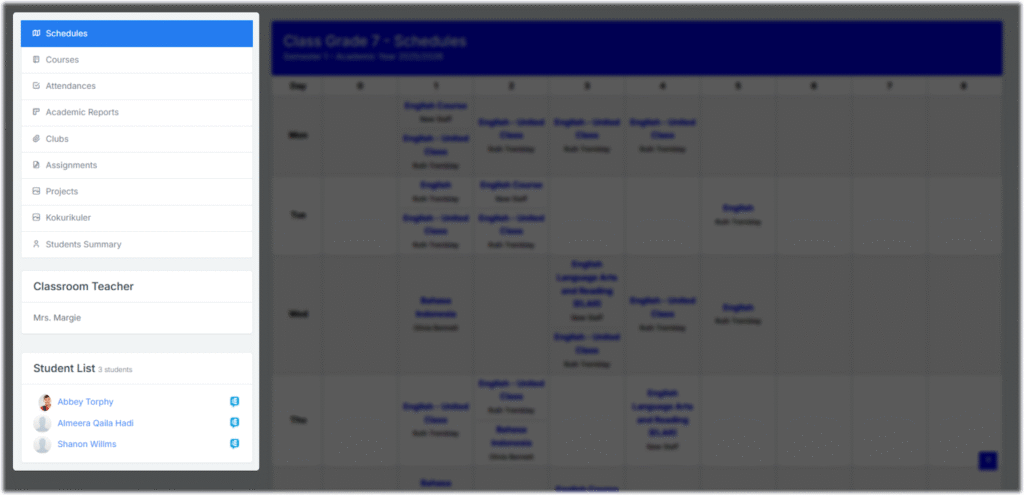
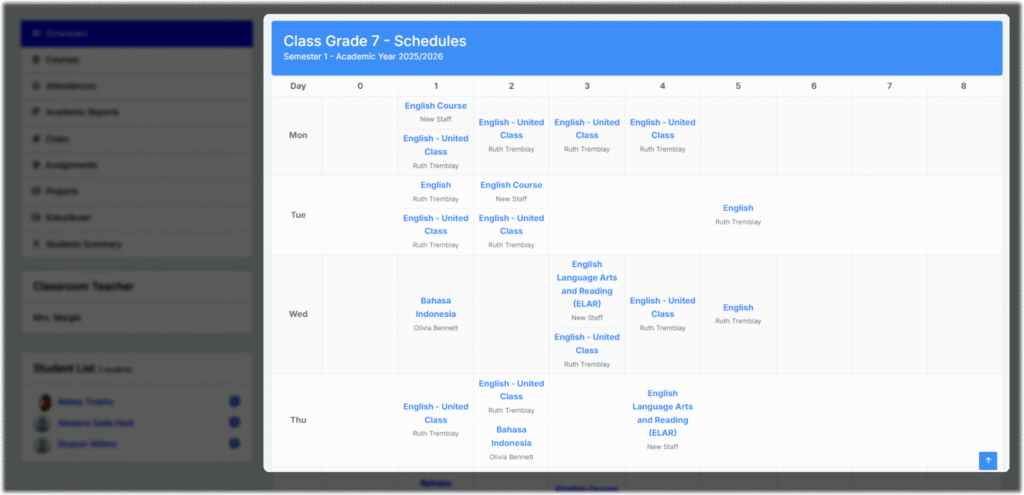
Class Schedule
Presents the collective schedule for the class, including regular lessons, extracurriculars, and special events.
Homeroom Teacher Features › My Class › Class Attendance
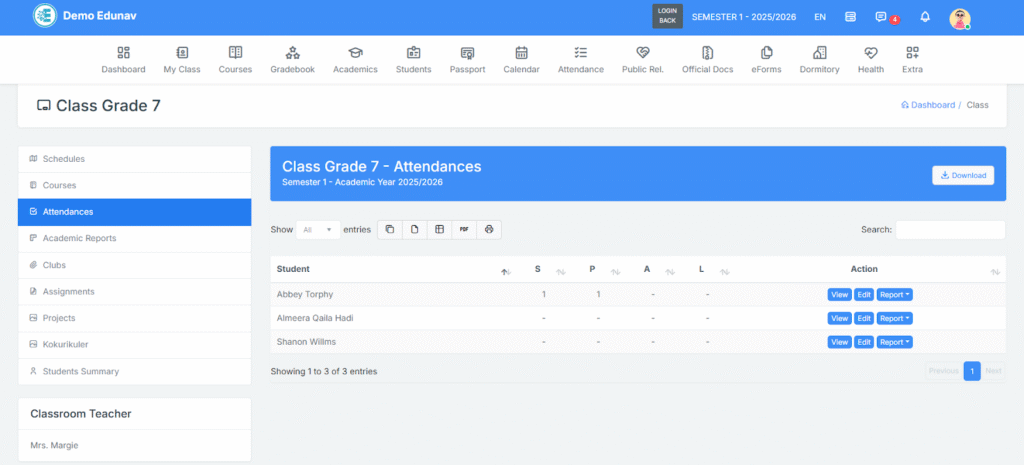
Class Attendance
Track daily attendance, including reasons for absences or tardiness.
Homeroom Teacher Features › My Class › Academic Progress/Gradebook
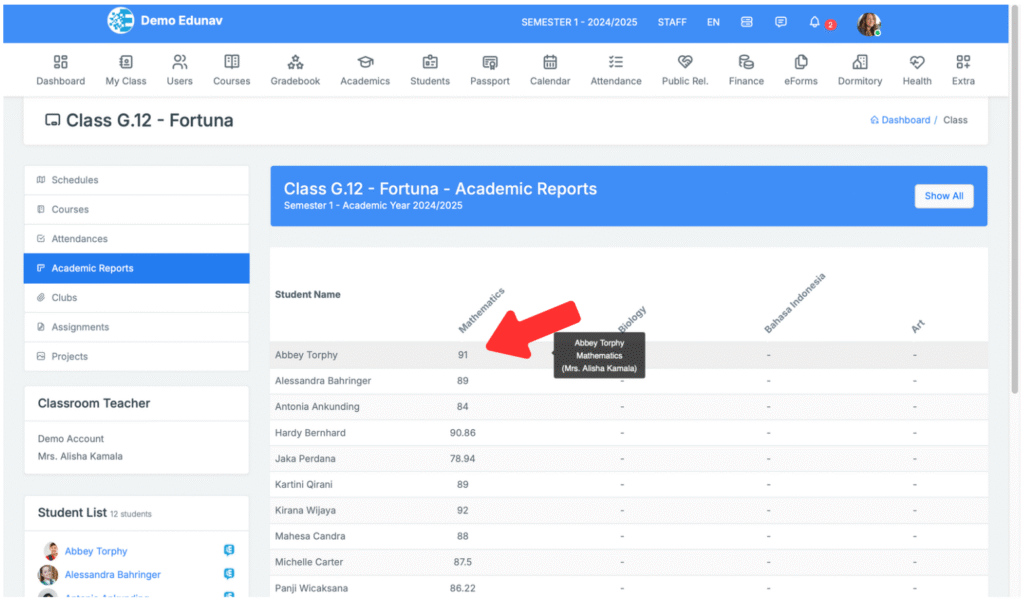
Academic Progress / Gradebook
Monitor individual and group academic progress across subjects, with access to grades and performance trends.
- Click on a student’s name to see a breakdown of grades.
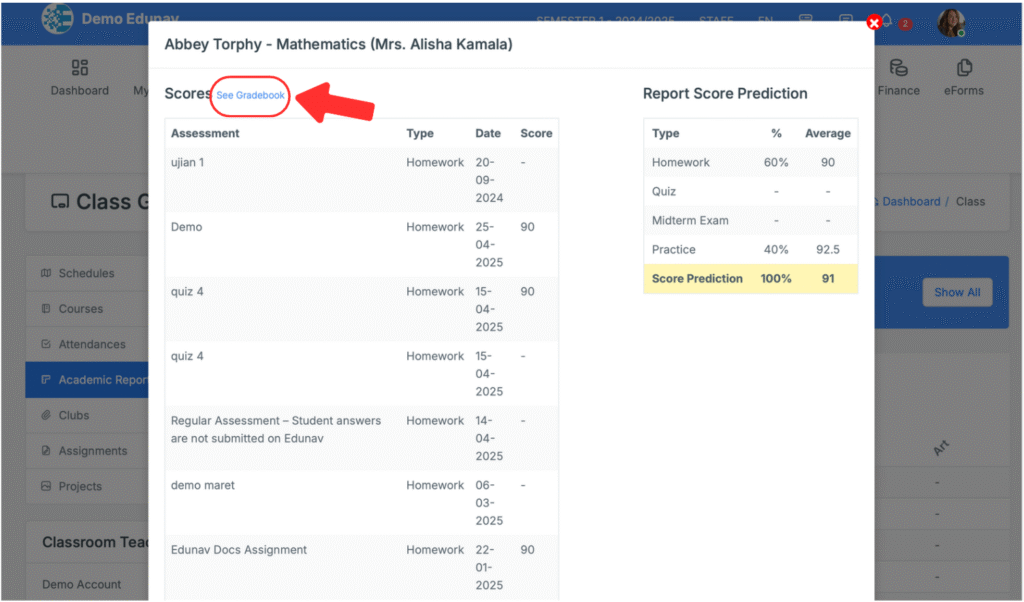
- The homeroom teacher can view the grade details and can open the gradebook of the selected LMS course.
Homeroom Teacher Features › My Class › Club
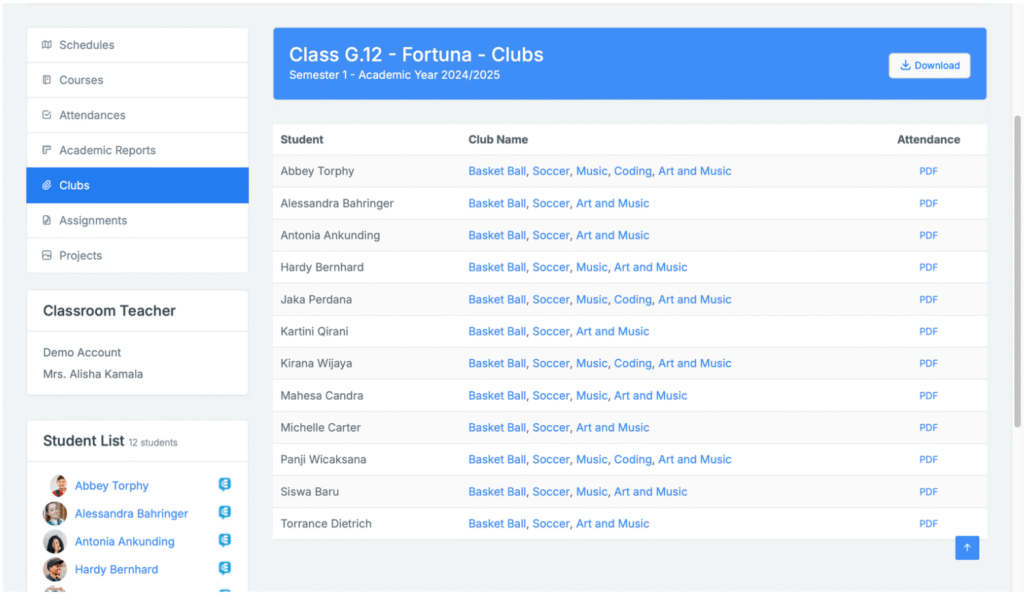
Club
View student participation in school clubs or extracurricular activities. Includes information about which students joined in which clubs, student attendance in clubs, and details in Clubs LMS as well.
Homeroom Teacher Features › My Class › Assignment Progress
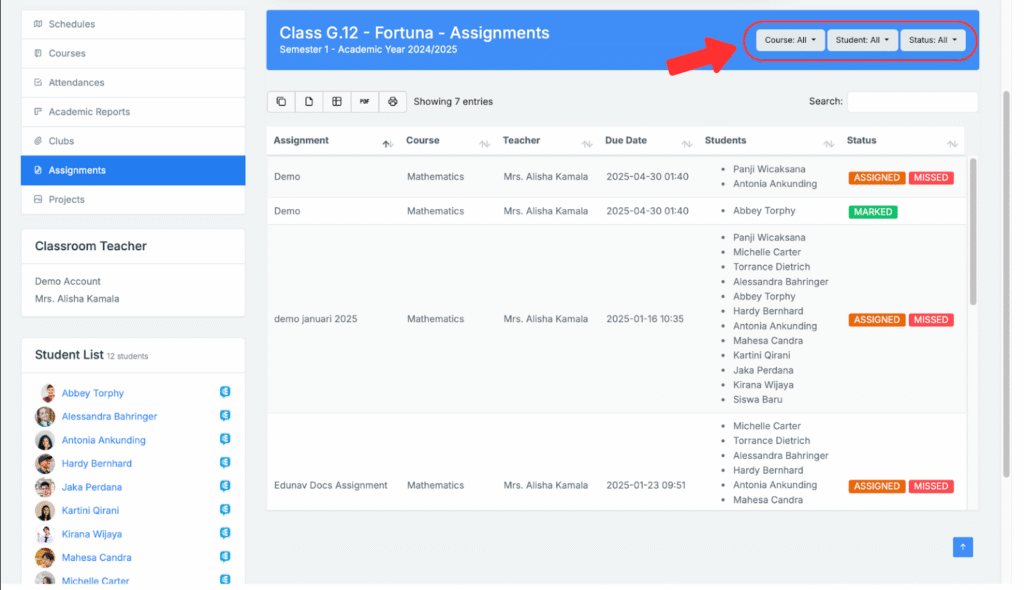
Assignment Progress
Track submission rates and performance of class assignments across all subjects. Homeroom teachers can filter to see specific data they need.
Homeroom Teacher Features › My Class › Class Projects
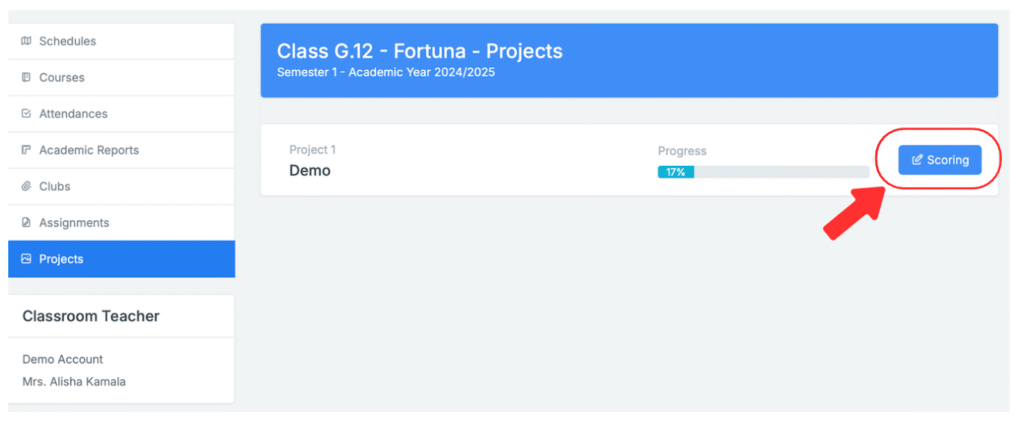
Class Projects
Pancasila Student Profile Strengthening Project (P5 Projects), a program that is part of the Independent Curriculum Manage group projects and monitors student contributions, deadlines, and evaluations.
- Homeroom teachers can provide grade scores for their class. Click “Scoring” button
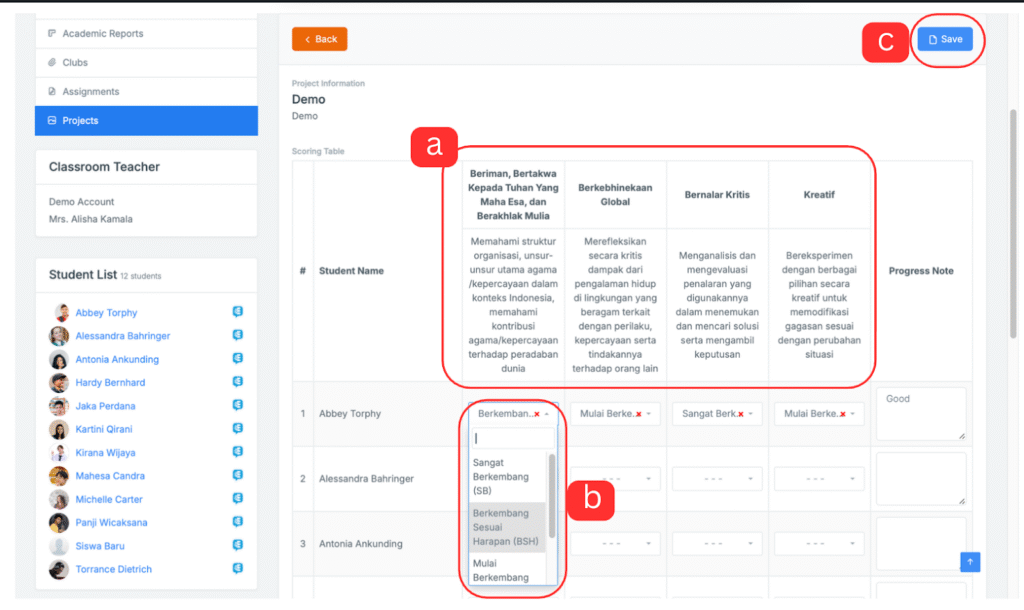
- Homeroom teachers can manage their class projects
- A. The assessment indicators have been adjusted to Indonesian government policies.
- B. Teachers can give grades according to the available assessment matrix.
- C. Don’t forget to click save after giving a score to all students.
Homeroom Teacher Features › Discipline › Student Reports
Homeroom Teacher Features › Discipline › Green/Red cards
Homeroom Teacher Features › Career Planning › Student Consultation
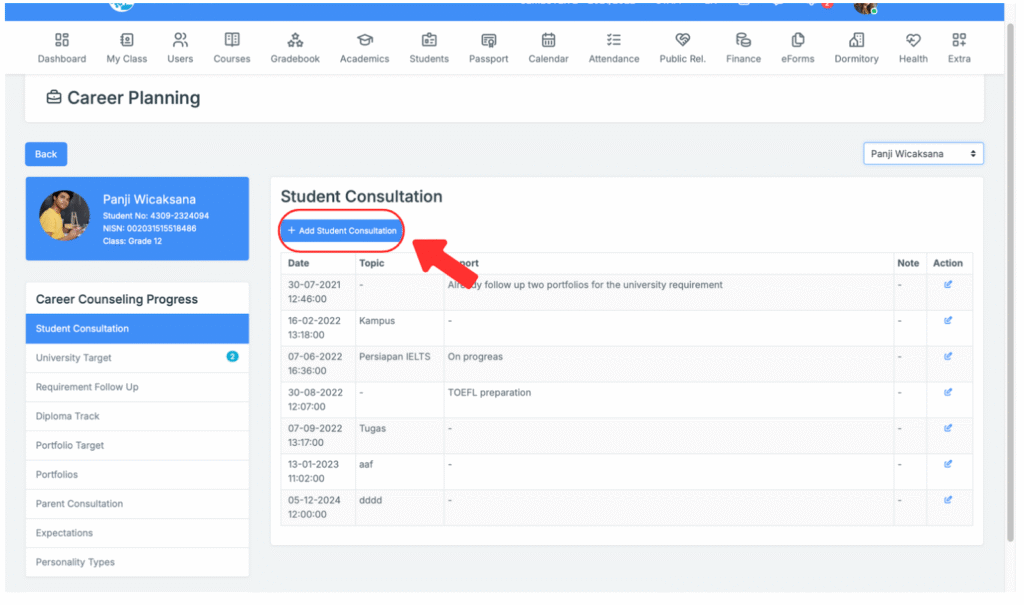
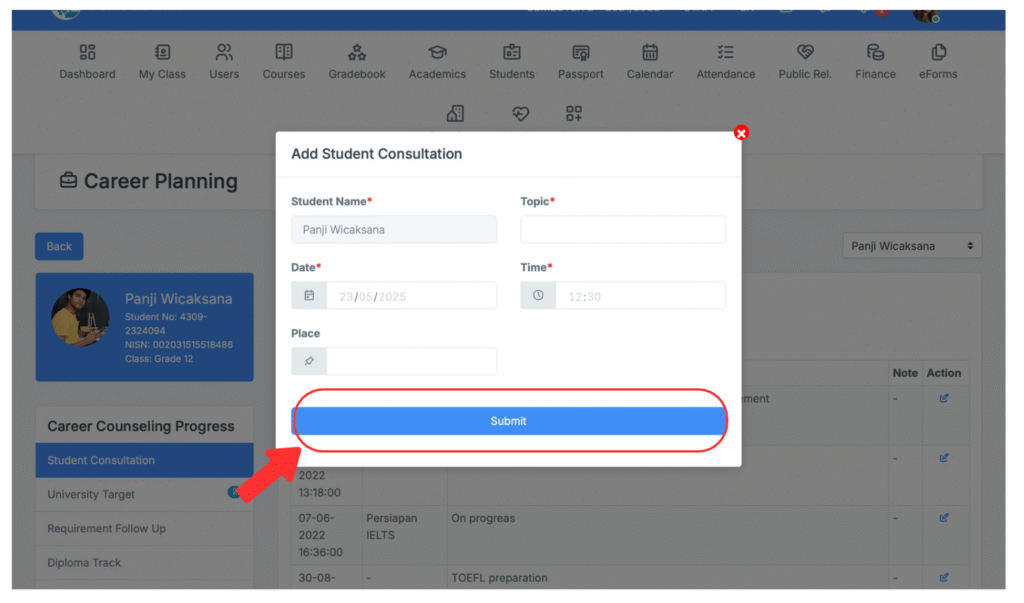
Student Consultation
Use this feature to schedule and record your one-on-one career discussions with students. These conversations help them reflect on their interests and plan their future paths.
- Add Student Consultation
- Fill in the meeting data, don’t forget to click save
Homeroom Teacher Features › Career Planning › University Target
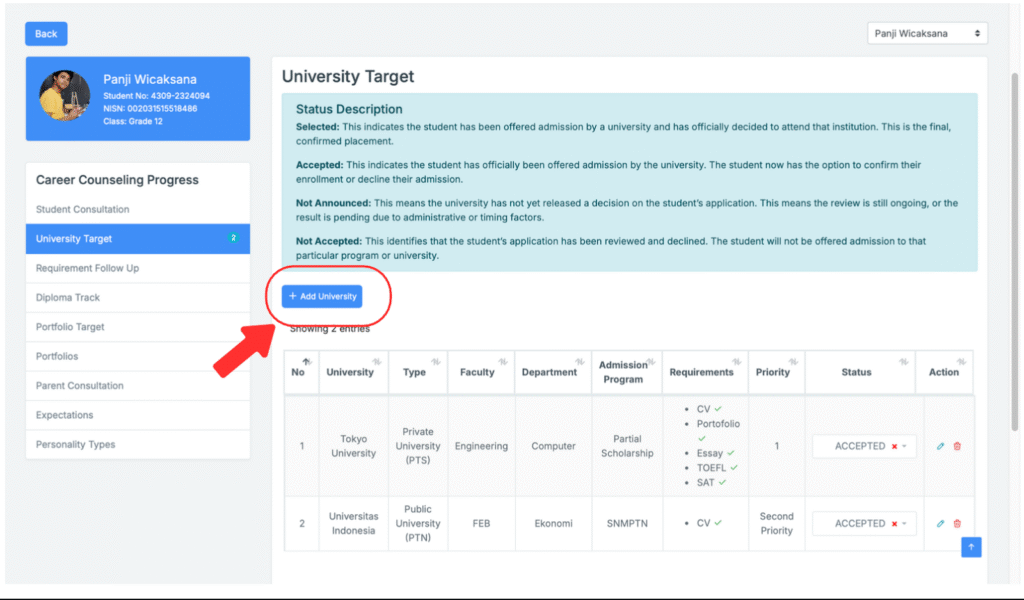
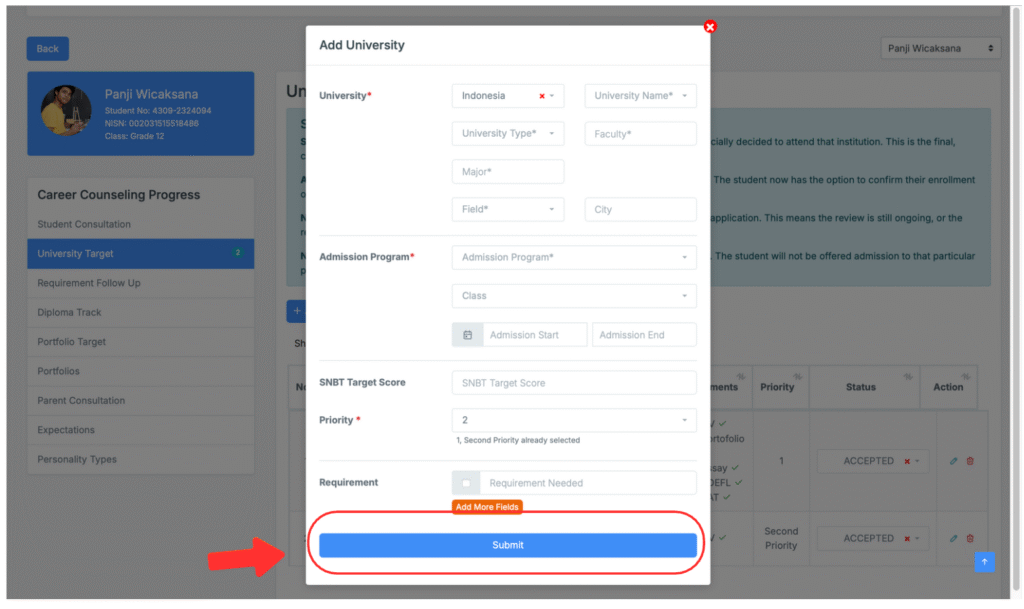
University Target
- Here you can see and update the list of universities each student is aiming for. You’ll also see the programs they’re interested in and their current preparation status.
- Fill in the required data then click submit
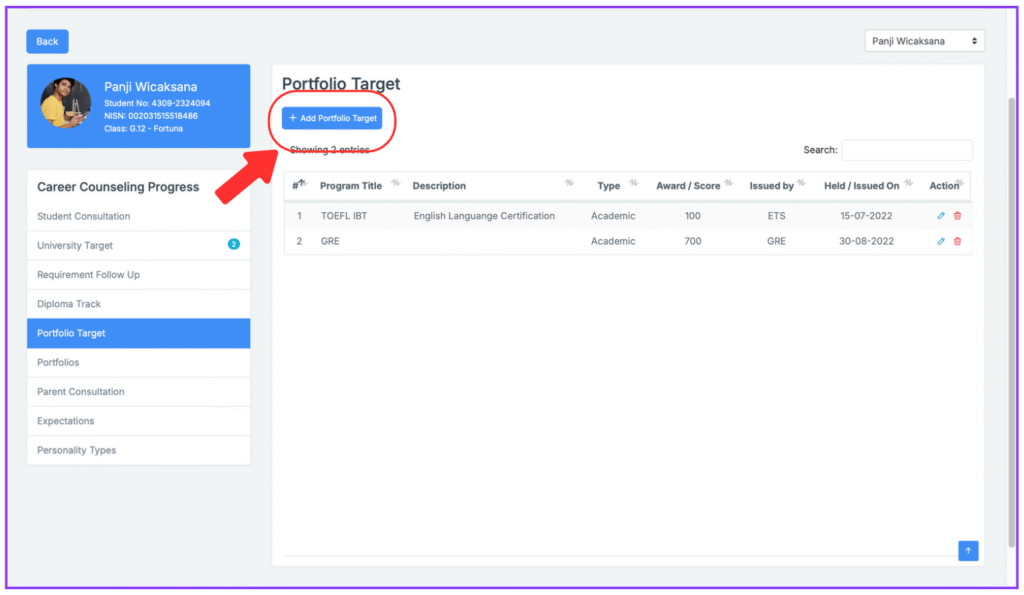
Homeroom Teacher Features › Career Planning › Portfolio Target
Help students set clear goals for what they should include in their portfolio—like certificates, projects, or leadership experiences.
Homeroom Teacher Features › Career Planning › Portfolio
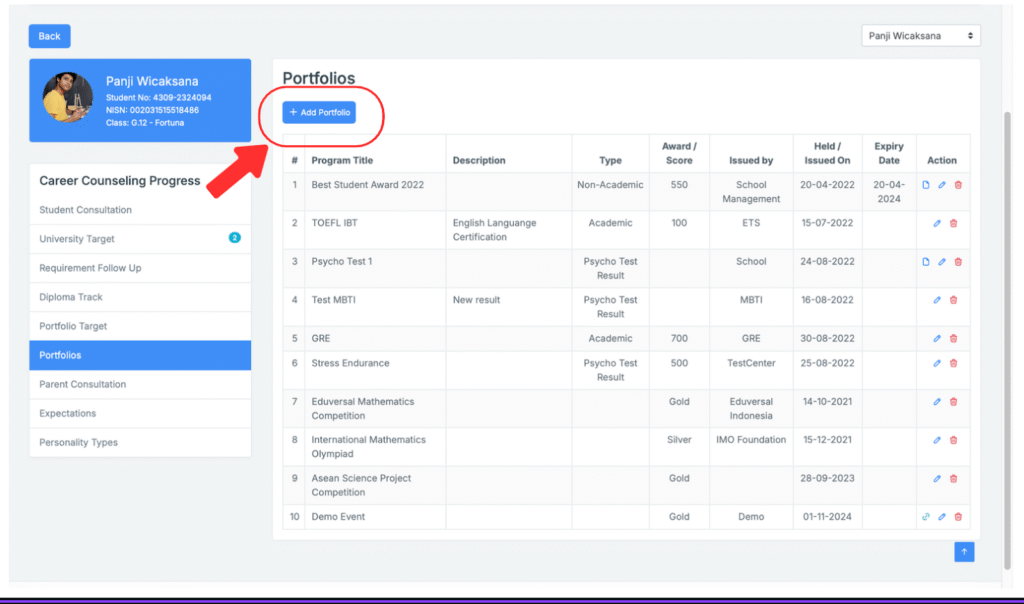
Portfolios
Here you can view each student’s portfolio—a collection of their work, achievements, and progress. You can give feedback or encourage them to add more.
Homeroom Teacher Features › Career Planning › Diploma Track
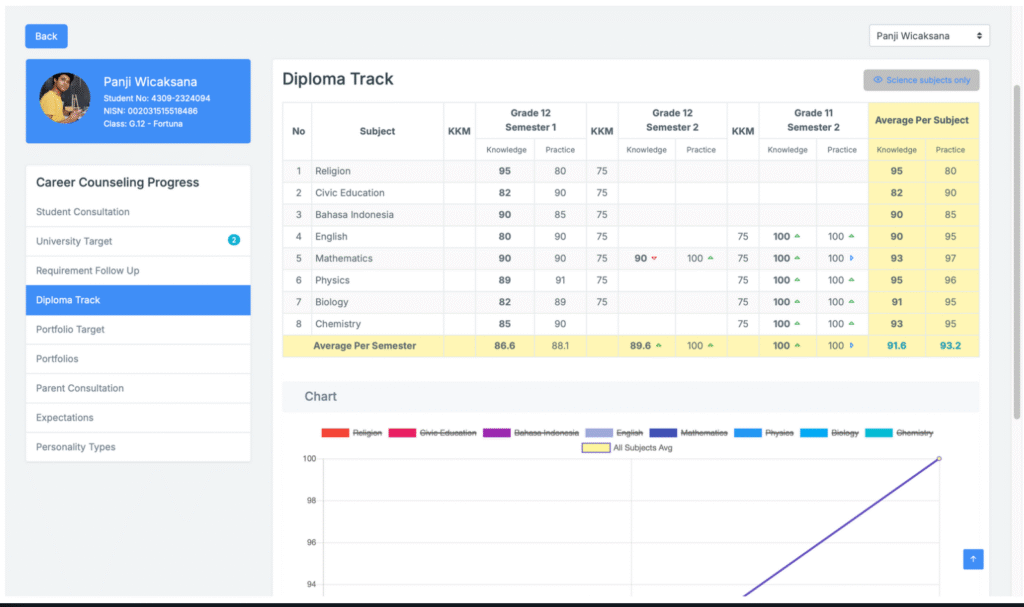
Diploma Track
Check if students are on track to graduate. This includes their subjects and grades.
Homeroom Teacher Features › Career Planning › Parent Expectation
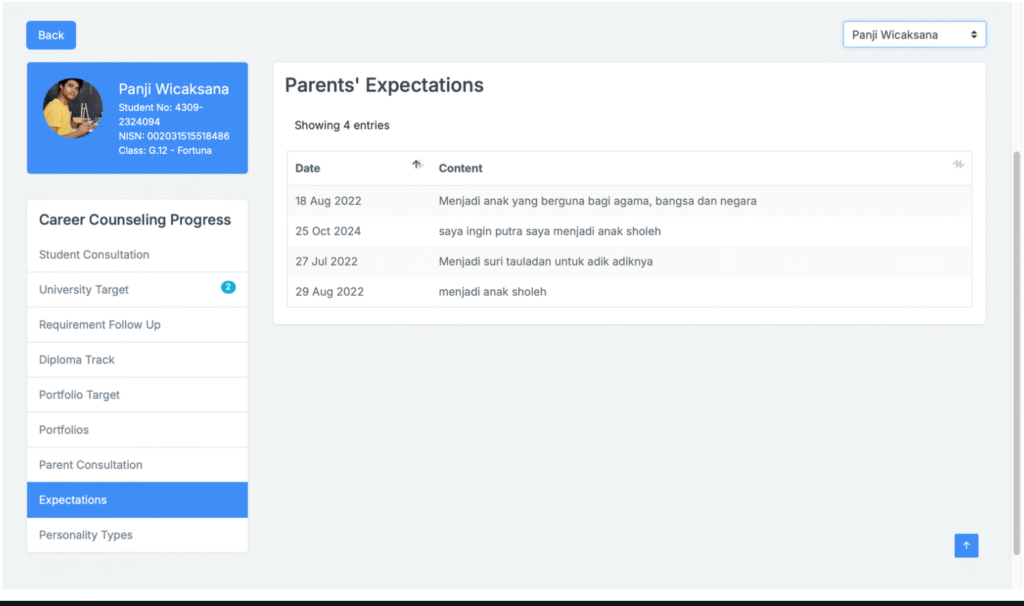
Parent’s Expectations
what parents expect from their children’s future, they wrote from the Edunav parent account.
Homeroom Teacher Features › Career Planning › Parent Consultations
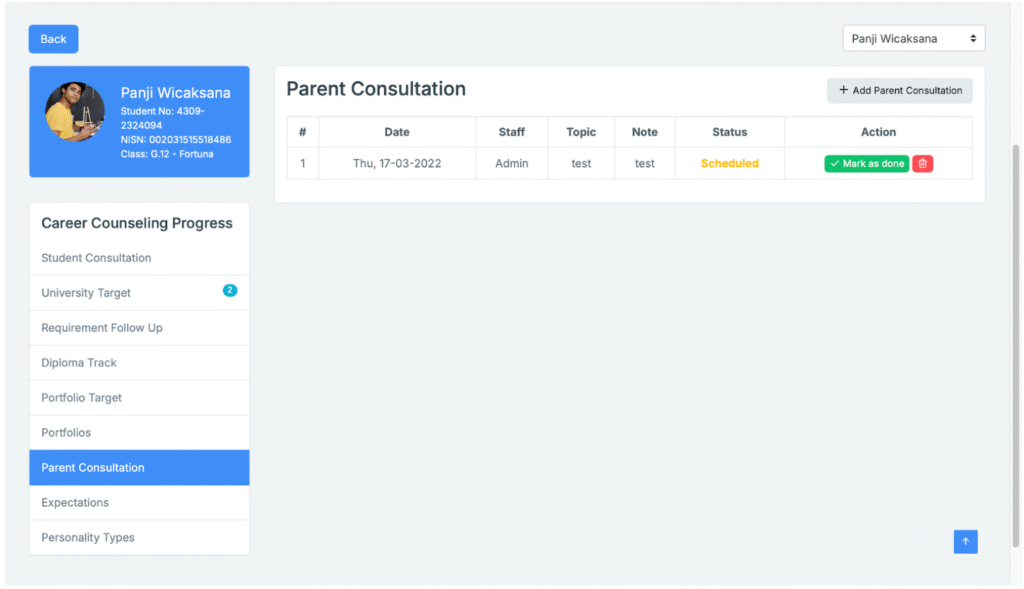
Parent Consultation
Schedule a meeting with parents. This helps align the student’s plans with the family’s expectations.
Homeroom Teacher Features › Career Planning › Personality Types
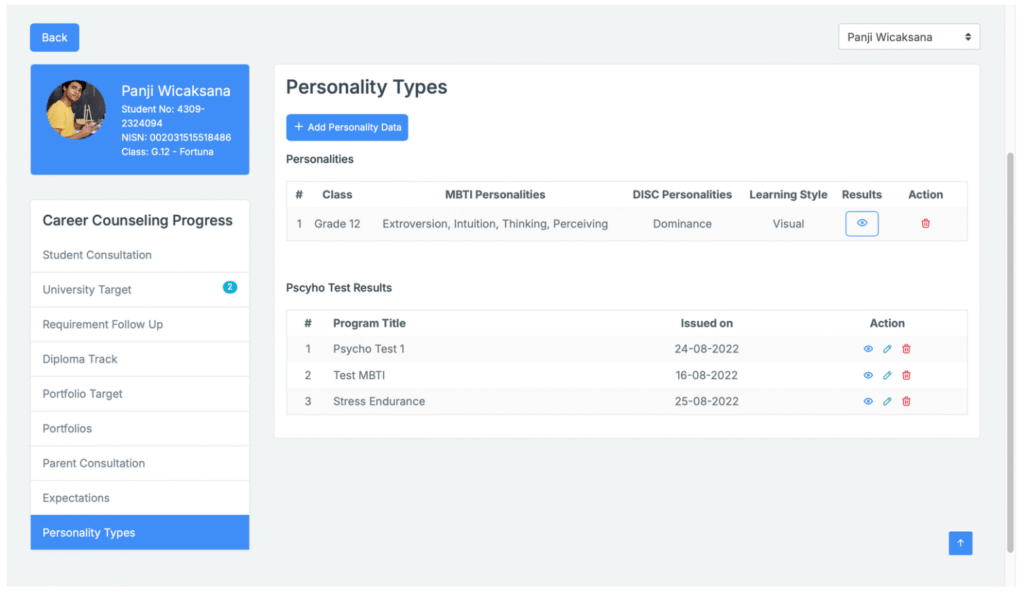
Personality Types
- View the results of personality or career aptitude tests
Homeroom Teacher Features › Student Permission › Student Permission
Student Permission
Manage students’ permission requests such as early leave, external appointments, or home leave. Student permissions can be made by Parents and Homeroom Teachers
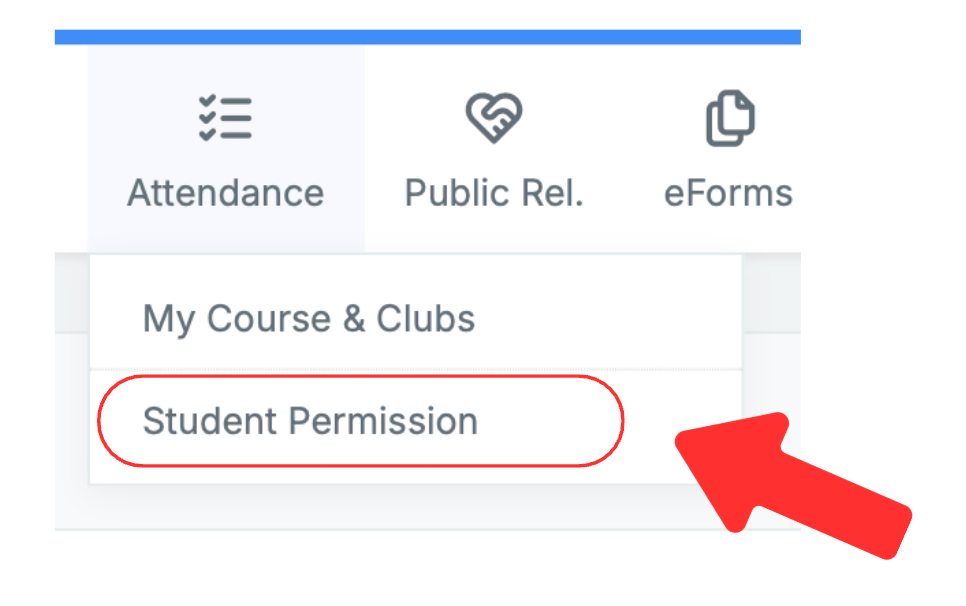
- Go to Attendance. Create student permission
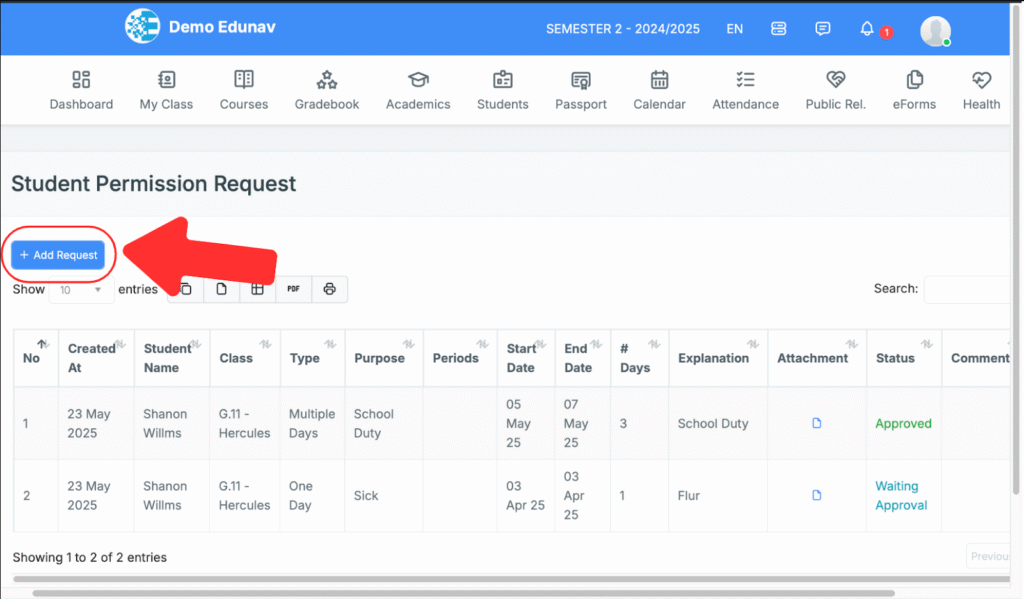
- click “add request”
- Fill in the permit data. add document files if necessary. click “send request”
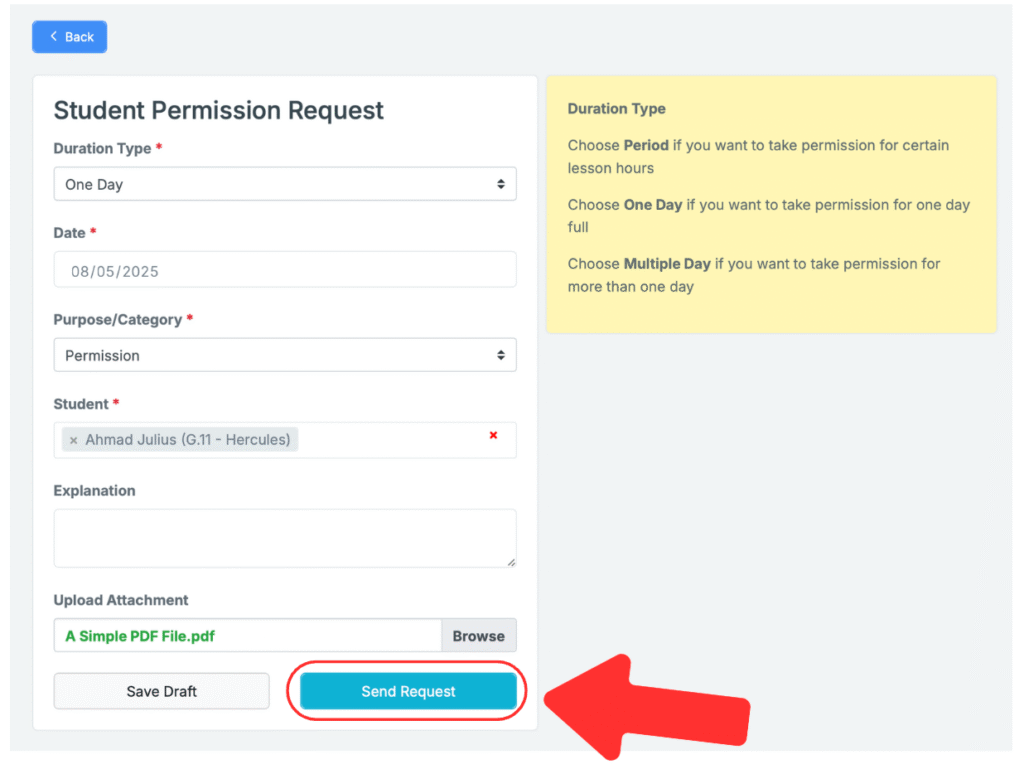
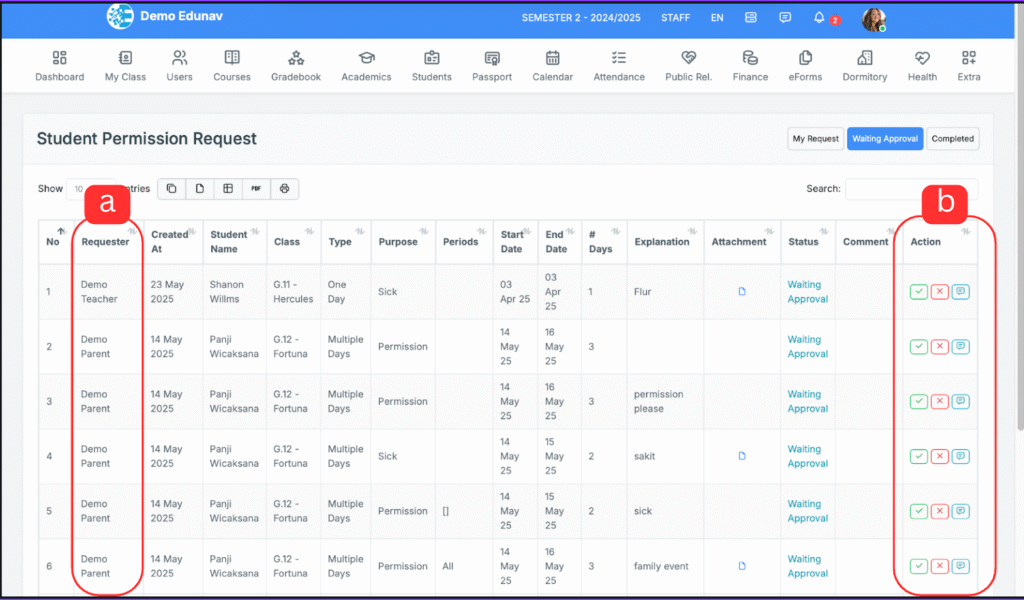
- Permission data will be reviewed by PIC for approval. The homeroom teacher is part of the party that provides approval.
- A. The homeroom teacher can see all permissions requested by staff and parents.
- B. The requested permissions can be approved, rejected, and commented on
Homeroom Teacher Features › Guidance › One on One
Homeroom Teacher Features › Guidance › Student Group Discussion
Homeroom Teacher Features › Guidance › Social Activity
Homeroom Teacher Features › Guidance › Parent Visit
Homeroom Teacher Features › Guidance › Dormitory Visit
Homeroom Teacher Features › Guidance › Seminar
Homeroom Teacher Features › Guidance › Guidance Lesson
Homeroom Teacher Features › Guidance › Self Study
Homeroom Teacher Features › Guidance › Question Drill
Homeroom Teacher Features › Guidance › Book Reading
Homeroom Teacher Features › Guidance › Performance Checklist
Homeroom Teacher Features › Dorm › Discipline
Homeroom Teacher Features › Dorm › Permission
Homeroom Teacher Features › Health › Student Health Information
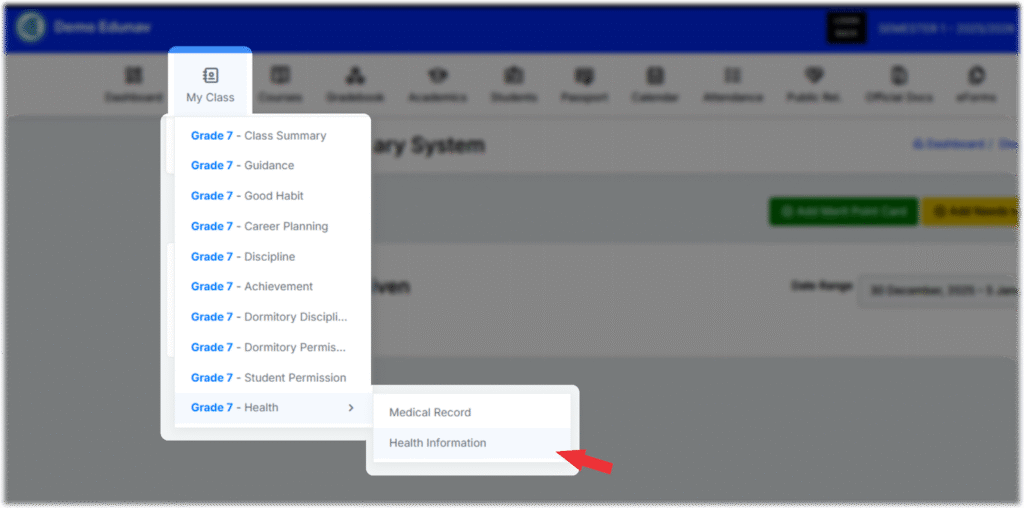
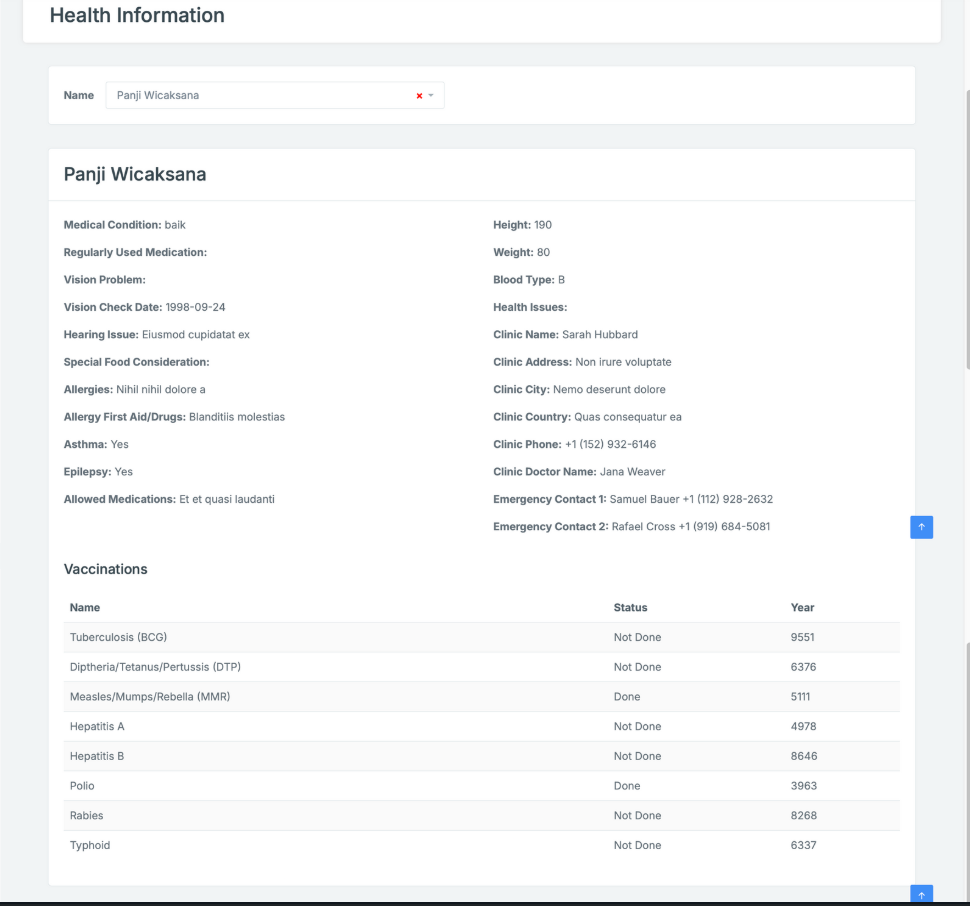
Student Health Information
Access general health data such as allergies, vaccinations, or chronic conditions.
Homeroom Teacher Features › Health › Student Medical Record
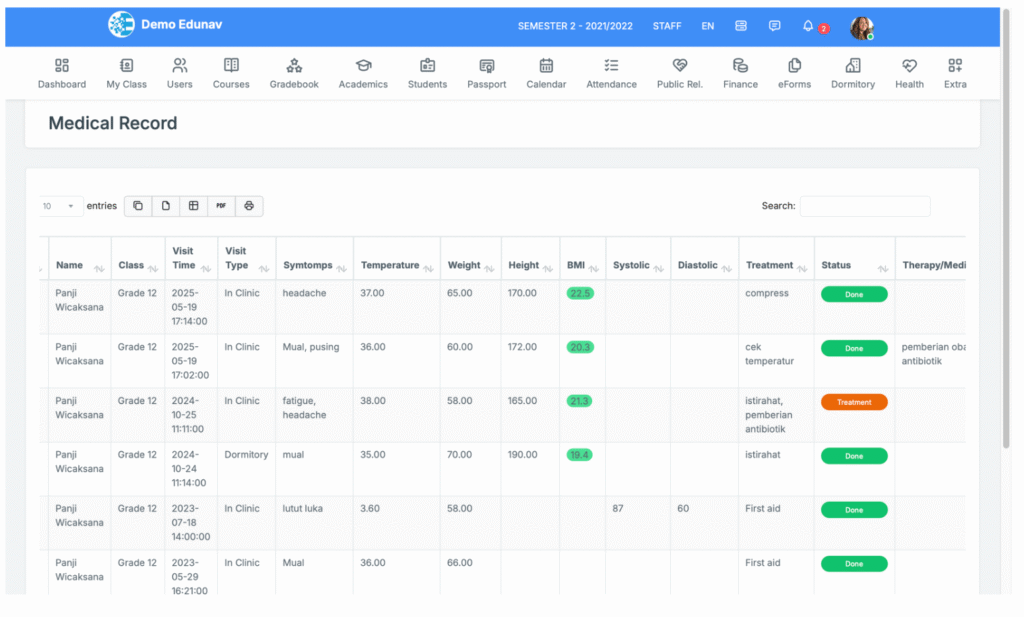
Student Medical Record
Review medical visits, prescriptions, and treatment logs maintained by the school clinic.
Homeroom Teacher Features › Term Report › Term Report
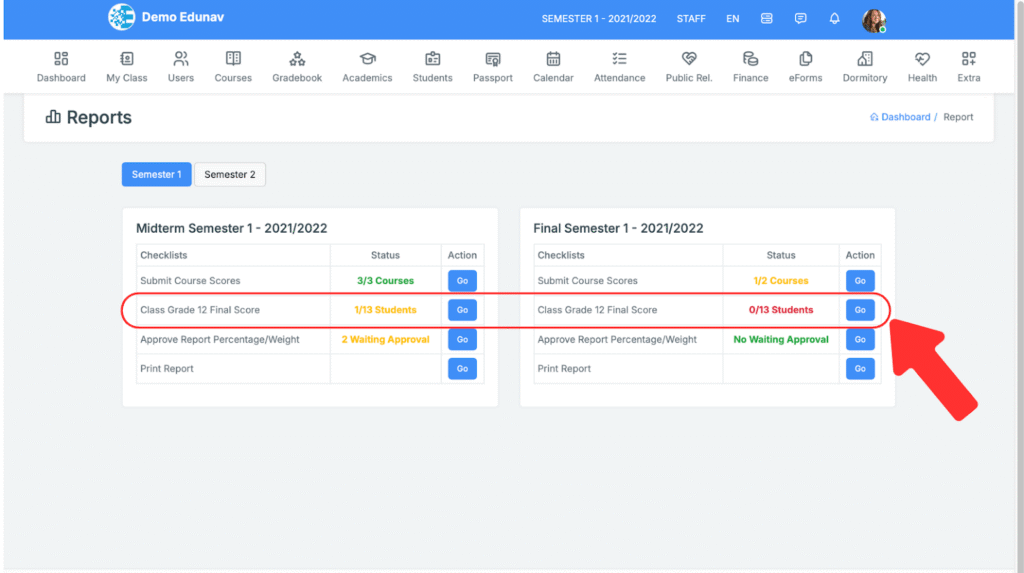
Homeroom teacher completes the report by providing comments. Student grade data will be automatically taken from each course.
- Navigate to Academics > Term Report > Select Semester > Class Term Report.
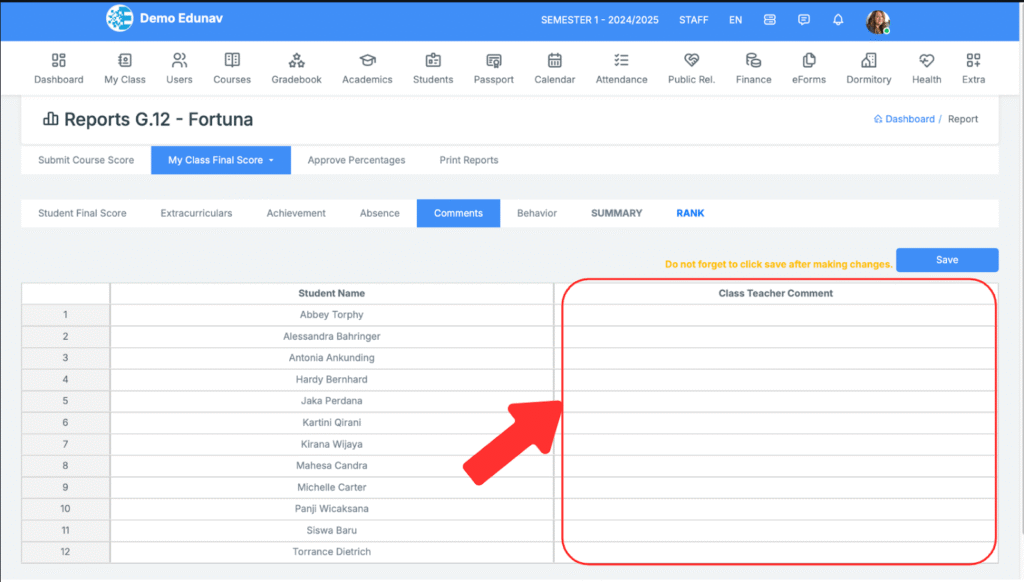
- Homeroom teacher gives comments to each student in the class. Copy-paste can be done when filling in the comments column.
- After the report data is filled in, Homeroom Teacher can go to the print page.
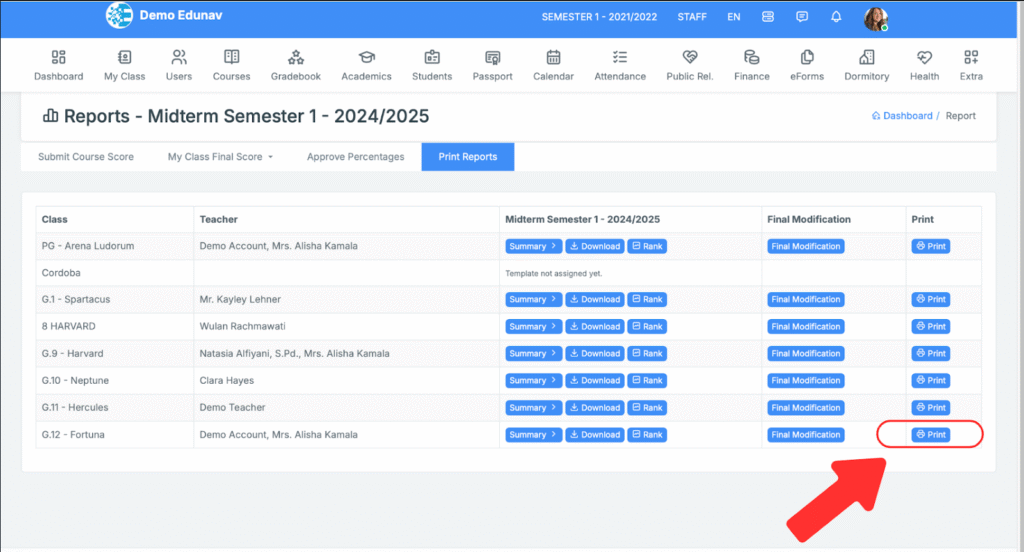
- The report printing process can be carried out by the homeroom teacher or school PIC
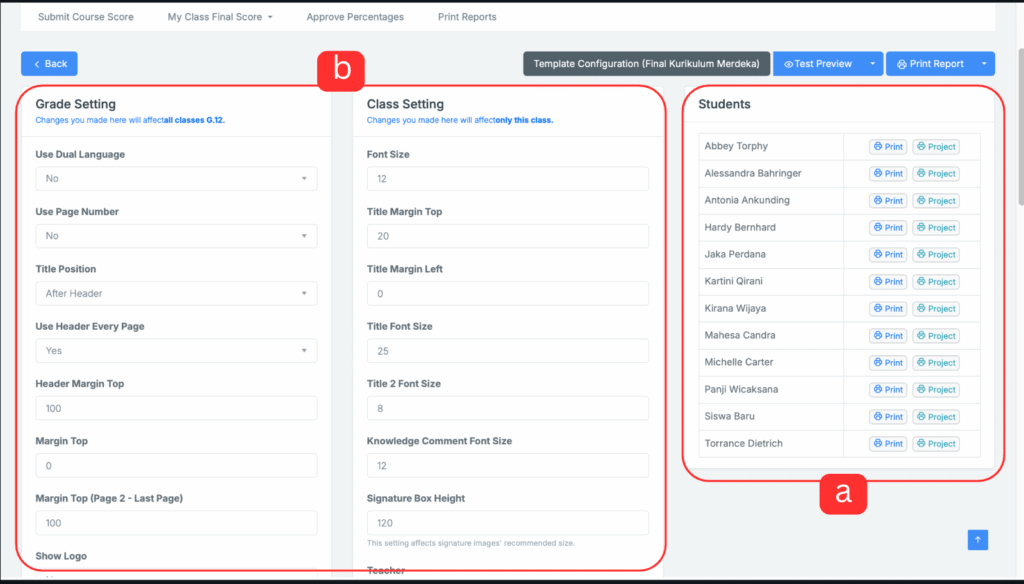
- A. Template settings and report card content filling
- B. Report cards are printed according to the type of report card active in the school.
Student Features › Academic › Course
Student Features › Academic › Gradebook
Student Features › Academic › Assignments
Student Features › Academic › Exam result & report
Student Features › Academic › Academic Calendar
Student Features › Academic › Schedule
Student Features › Academic › Attendance
Student Features › Club › Attendance
Student Features › Club › Announcement
Student Features › Club › Score
Student Features › Guidance › Guidance Activities
Student Features › Guidance › Reports
Student Features › Health › Medical Records
Student Features › Communication › Chat
Student Features › Communication › Stories
Student Features › Communication › News
Student Features › Communication › Announcements
Student Features › Tahfidz › Score
Student Features › Tahfidz › Attendance
Student Features › Tahfidz › Report
Student Features › Carreer › University Target
Student Features › Carreer › Portfolio
Student Features › Carreer › Requirement Follow Up
Student Features › Discipline › Red Cards
Student Features › Discipline › Green Cards
Student Features › Student Survey › Student Survey
Student Features › Library › Book Request
Student Features › Library › History
Student Features › Library › Library Visit
Parent Features › My Children › Academic
Parent Features › My Children › Student Progress
Parent Features › My Children › Counselling
Parent Features › Finance › Child's Biils
Parent Features › Finance › Installments
Parent Features › Finance › Payment Gateway
Parent Features › Communication › Chat
Parent Features › Communication › Stories
Parent Features › Communication › News
Parent Features › Communication › Announcements
Parent Features › Tahfidz › Score
Parent Features › Tahfidz › Attendance
Parent Features › Tahfidz › Report
Parent Features › Parent Survey › Parent Survey
Parent Features › Student Permission › School Permission
Parent Features › Student Permission › Dormitory Permission
Parent Features › Child's Health › Medical Records
Parent Features › Child's Health › Health Information
Admin Setup › Edunav Attendance Synchronizer (Fingerprint) › User Guide
Overview
Edunav Attendance Synchronizer is a local application that synchronizes attendance data from fingerprint machines into the Edunav system. This application runs on a local computer and connects to a browser for monitoring and controlling data synchronization.
Step-by-Step Usage Guide
1. Accessing the Synchronizer Folder
Ensure that the local computer you are using has Edunav Attendance Synchronizer installed.
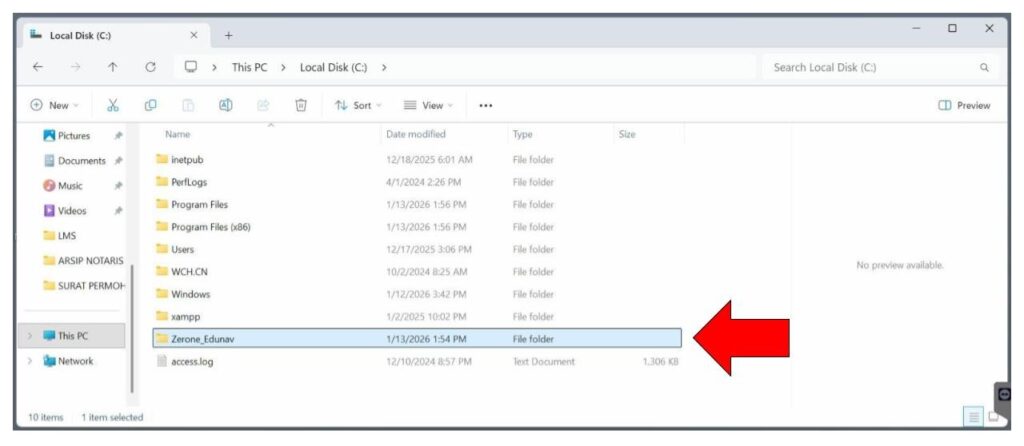
Open This PC, then go to Local Disk (C:). Find the folder named zerone_edunav, then open it.
2. Opening Fingerprint Service
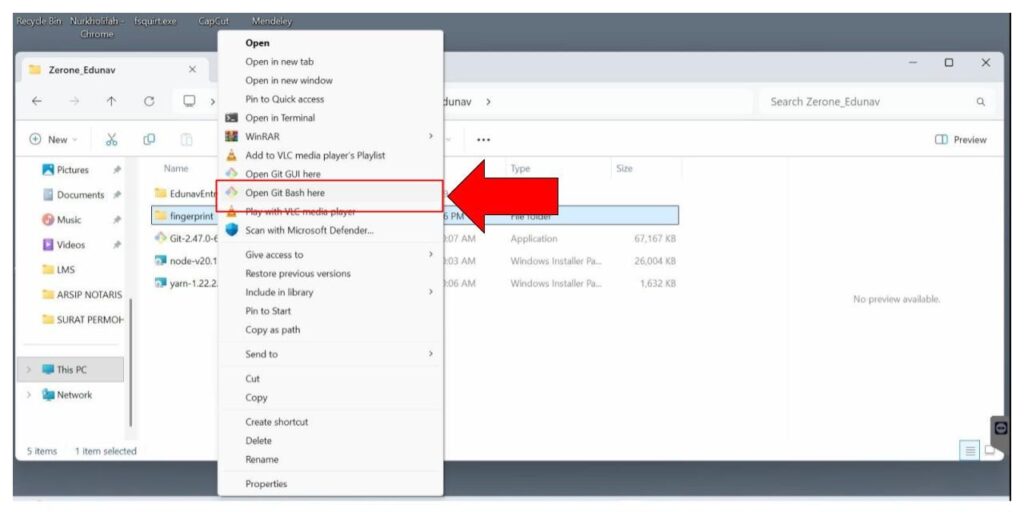
In the zerone_edunav folder, select the folder named fingerprint.
Right-click on the folder, then select the “Open Git Bash Here” menu to open the terminal.
3. Running the Synchronizer
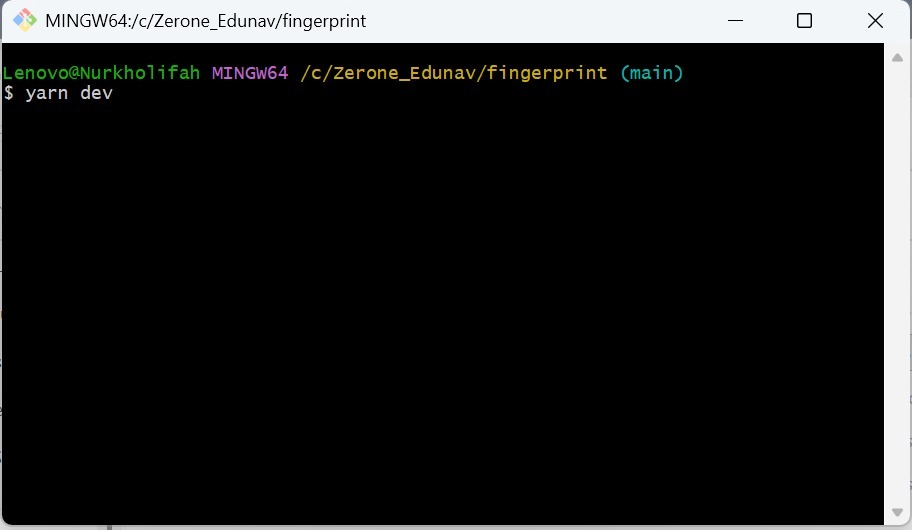
Once the Git Bash Terminal is open, type the following command in the terminal:
yarn dev
Press Enter to run the system.
4. Keeping the System Running
After the system is up and running and the synchronization process is active, do not close or minimize the terminal window.
Leave the terminal open so that the synchronization process runs normally, then proceed to the browser.
5. Accessing the Web Application
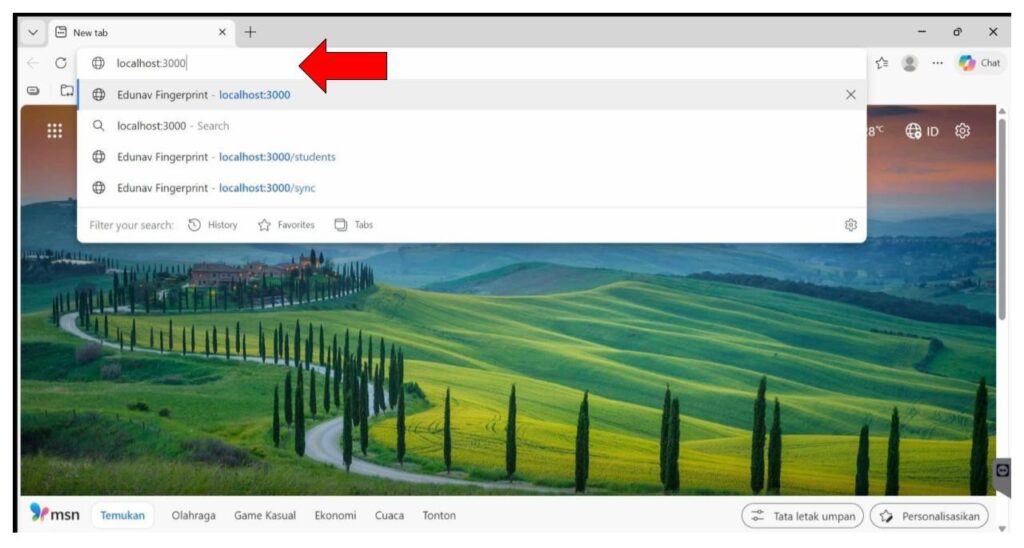
Open your browser on your computer, then type the following address in the address bar:
localhost:3000
Press Enter to access the fingerprint synchronization application page.
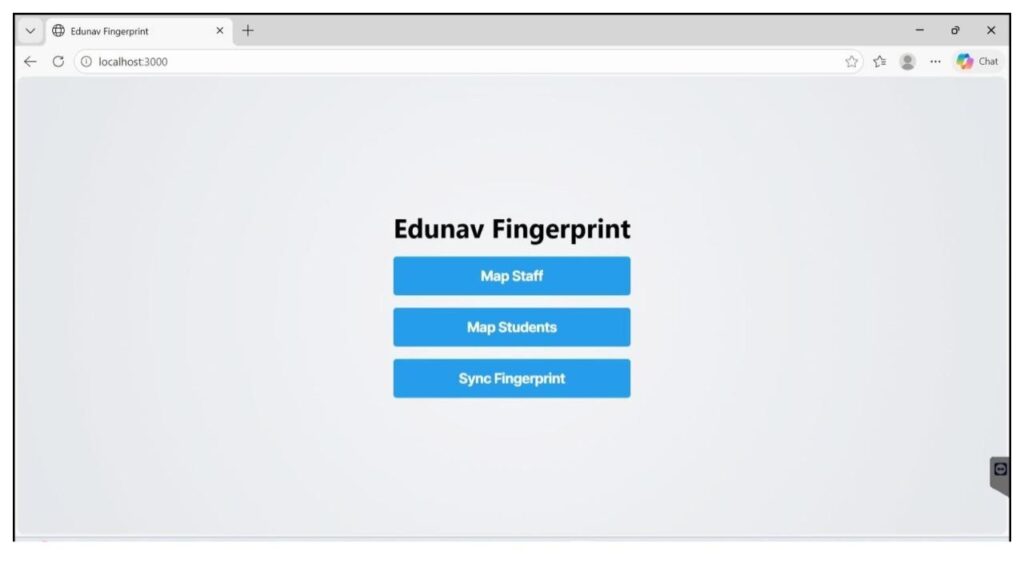
The image above is the Edunav Synchronizer dashboard.
- 1. Map Staff to map school staff user data in edunav with staff data on the fingerprint machine.
- 2. Map Student to map school student user data in edunav with student data on the fingerprint machine.
- 3. Sync Fingerprint, this menu is used to synchronize fingerprint machine data to be uploaded to the edunav system.
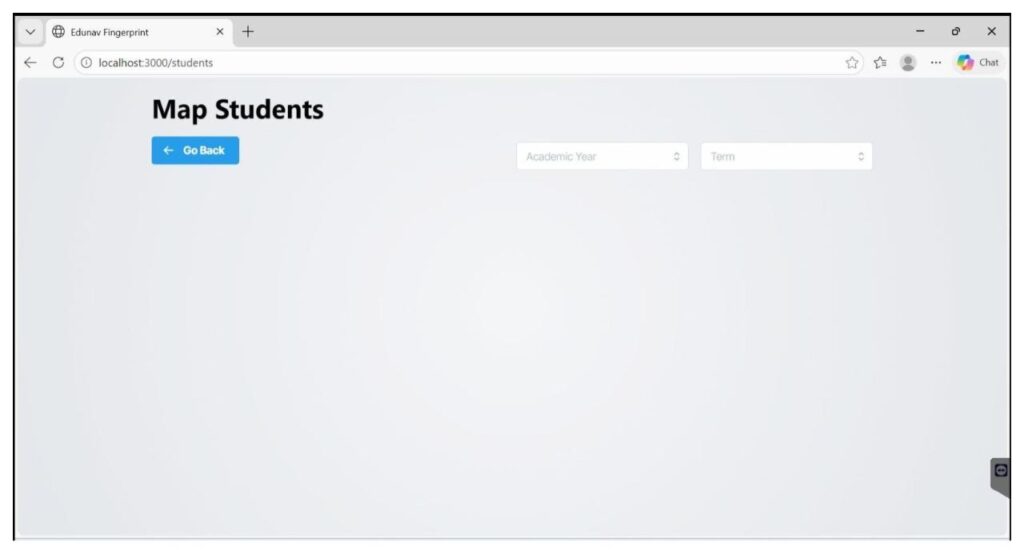
*The image above is the Student Mapping menu.
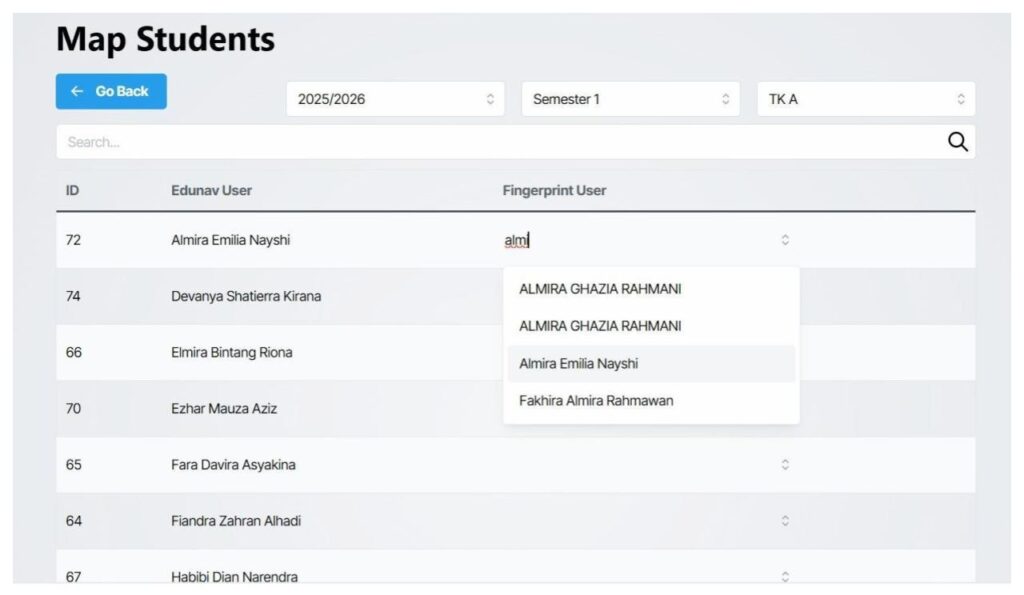
Student ID data needs to be mapped between user data in edunav and user data in the finger machine.
Sync Fingerprint Data Menu
The Sync Fingerprint Data menu is used to manage and monitor the synchronization of attendance data from fingerprint machines to the Edunav system.
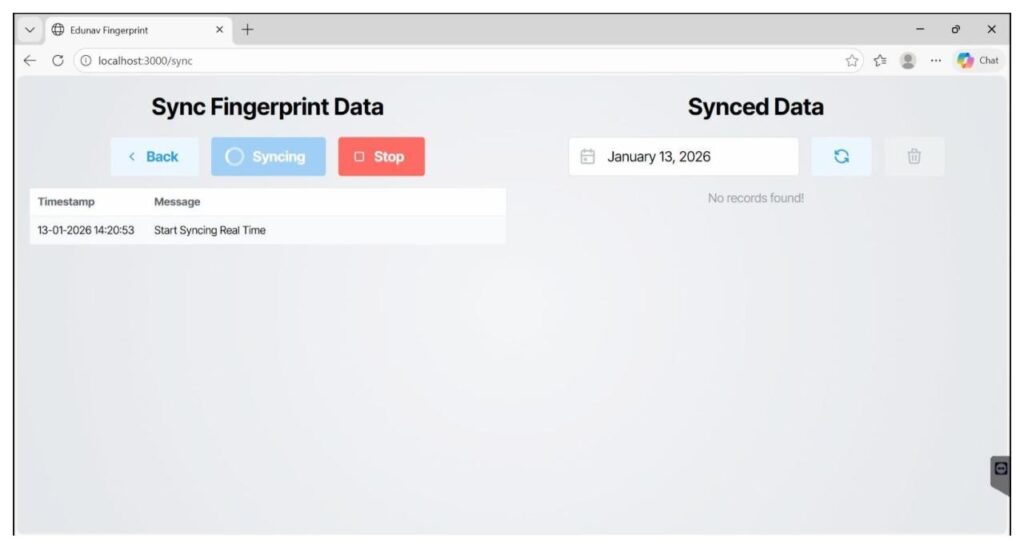
Sync Section (Left Panel)
On the left side, there is a Sync menu that can be clicked to synchronize all data from the fingerprint machine..
This feature is typically used for:
- Initial synchronization
- Comprehensive attendance data updates
Date Filter & Manual Sync (Right Panel)
On the right side, there is a date filter that allows users to check attendance data based on a specific date.
The data displayed in this section is data directly from the fingerprint machine.
If the Sync button on the right section is pressed, the system will trigger a special checking and resynchronization process for attendance data on the selected date.
This feature is very useful for ensuring that attendance data for a specific day has been synchronized correctly without having to perform a full synchronization.
Important Notes
- Ensure that the connection between the fingerprint machine and the local computer is working properly.
- Do not close the terminal while synchronization is still required.
- Use synchronization by date if data problems only occur on certain days.